

Most Zoho CRM accounts that go wrong do not go wrong because of a missing feature. They go wrong in the first fortnight: users invited before anyone decided what they should see, a spreadsheet of 8,000 contacts imported with three spellings of every county, and a pipeline copied from the default template that matches nobody's sales process. Three months later the team has quietly gone back to their inboxes.
This guide is for the person who has been handed the new account at a small or mid-sized business, usually in the United States, the United Kingdom, Australia or New Zealand, with somewhere between 3 and 50 users. It walks through the setup in the order that avoids rework, with the Setup menu paths from Zoho's own help pages, checked on 27 November 2026. Zoho is moving accounts to a newer interface, so a menu name on your screen may differ slightly; the settings themselves are the same.
The short answer
- Plan on paper first. Write down your sales stages, who owns which records and the five reports you will look at every week.
- Company settings before anything else: time zone, currency, fiscal year and the hierarchy preference.
- Access before people: roles, profiles and data sharing first, then invite users. Records are private by default.
- Shape the process: modules, fields, layouts and pipeline stages to match how you actually sell, then connect email.
- Rules before data: Zoho's own checklist says to set up automation before you import, so imported records are assigned and processed properly.
- Import small, then big: clean the file, import 50 rows, check them, then import the rest.
- Launch with a pilot group, and review what people actually use after two to four weeks.
Before you start: three decisions on paper
Every guide that ranks for this question says "define your goals". That is true but vague. These are the three things worth writing down before you open Setup, because each one changes a setting.
- Your sales stages, with an exit rule for each. Not "Qualification" but "We have spoken to the decision maker and know the budget". These become pipeline stages, and the exit rules become required fields or a Blueprint later.
- Who should see whose records. Can every salesperson see every deal? Can the regional manager in Leeds see the Bristol accounts? This decides your role hierarchy and sharing settings.
- The weekly reports. Pipeline by stage, deals won this month, leads by source, overdue tasks. If a field is not needed for one of these reports or for doing the work, do not create it.
Also check your edition. Zoho's quick start notes which features need which edition: workflow rules are available from the free edition up, reports and dashboards from Standard, and Blueprint and Zia from Professional. New accounts start on a 15 day free trial. We do not quote Zoho's prices here because they change and differ by country; see Zoho's CRM pricing page for current plans.
Step 1: Company settings
Open the Setup gear and go to Setup > General > Company Settings (the implementation checklist calls the same page Company Details). Set these before anyone else logs in:
- Company name, address and logo. These appear on emails and templates.
- Time zone, under Locale Information. Wrong time zones make every task due time and every scheduled workflow an hour or more out.
- Currencies, under Company Settings > Currencies. The home currency becomes the base currency for every money field, so choose it once and leave it. Standard edition allows up to five currencies, higher editions more. A New Zealand business selling into Australia, or a UK firm invoicing in euros, should set this up now.
- Fiscal year, under Company Settings > Fiscal Year. It drives forecasts, reports, dashboards and custom views. Australian and New Zealand businesses usually want a July or April start, UK companies often April. Custom formats such as 4-5-4 are available.
- Hierarchy preference, under Company Settings > Hierarchy Preference. Choose Role Hierarchy (the default) or Reporting Manager. Zoho's own guidance is to set this before inviting users or creating roles.
Business hours are also part of the organisation settings and matter if you will use case escalation or SLA rules later.
Step 2: Roles, profiles and data sharing
This is the step most setup guides skip, and the one that causes the most trouble later. Zoho CRM controls access with three separate settings that do different jobs.
| Setting | What it controls | Where it lives |
|---|---|---|
| Role | Whose records a user can see. Managers see the records of the roles below them. | Setup > Security Control > Roles and Sharing |
| Profile | What a user can do: which modules, and whether they can create, edit, delete, export or import. | Setup > Security Control > Profiles |
| Data sharing | The default access to other people's records, module by module, and rules that open it wider. | Roles and Sharing > Data Sharing Settings |
Roles follow your reporting lines, not job titles. A typical small team needs three or four: CEO, Sales Manager, Sales Rep, and perhaps Support. Two people with the same title in different regions may need different roles if they should not see each other's deals.
Profiles are permission sets. Start by cloning the Standard profile with New Profile rather than editing the defaults, and keep the list short. A common pattern is Administrator, Sales, Sales Manager (adds export and mass update) and Read Only for finance or directors. Switch off export and mass delete for everyone who does not need them.
Data sharing sets what happens by default. According to Zoho's help, access to CRM records is private by default: only the record owner and their superiors can see a record. Each module can be set to Private, Public Read Only, Public Read/Write or Public Read/Write/Delete in the Default Organization Permissions tab. Sharing rules can then share records with roles, roles and subordinates, or groups, but they can only widen access, never restrict it. If a module is set to Public Read/Write or higher, the role hierarchy and sharing rules are not applied to it at all.
For most small sales teams, a sensible start is Private for Leads and Deals, Public Read Only for Accounts and Contacts (so nobody creates a duplicate company because they cannot see it), and a sharing rule for any team that needs more.
Step 3: Invite users
Now add people under Setup > General > Users (shown as Users and Control in some accounts) and click New User. Each user gets a role and a profile at creation, which is why those come first. Users can also be imported from a CSV file if you have many.
Invite the admin and one or two pilot users first, not the whole company. The pilot group will find the gaps in your fields and stages before everyone else does.
Step 4: Modules, fields, layouts and pipelines
Go to Setup > Customization > Modules and Fields. The standard modules are Leads, Contacts, Accounts, Deals, Tasks, Meetings and Calls, plus others depending on edition.
- Rename modules to your words. If your team says Enquiries rather than Leads, or Opportunities rather than Deals, rename them. It costs nothing and helps adoption.
- Hide modules you will not use. Every unused tab is a question in training.
- Add only the fields your reports or work need. Use picklists rather than free text for anything you will filter or report on, such as industry, lead source or region.
- Make few fields mandatory. Required fields at creation stop people saving records. Require details at the stage where they are known instead.
- Set up the deal pipeline. From Modules and Fields, open the Deals options and use Stage Probability Mapping to set your stages and a probability for each. Standard edition supports up to five pipelines; the free edition does not offer multiple pipelines.
Use custom list views and Kanban views for the screens people open every day, such as "My open deals by stage". If you need different layouts for different teams, for example a projects team and a product sales team, create them now rather than piling every field onto one form.
Step 5: Connect email
Email is what makes a CRM worth opening. Go to Setup > Channels > Email > Email Configuration. Zoho lists Zoho Mail, Gmail, Office 365 and other providers over IMAP or POP3. Each user connects their own mailbox, so emails to and from contacts appear on the contact and deal records.
Agree the privacy setting with your team before rollout: whether other users can see the content of each person's emails or only that an email was sent. People will not connect their mailbox if they are unsure who reads it.
Step 6: Automation, before the import
Zoho's own implementation checklist recommends configuring automation before bringing data in, so that imported records are assigned and processed by your rules. Keep the first set small:
- Assignment rules (Setup > Automation > Assignment): which owner gets a new lead by region, product or round robin.
- A web-to-lead form (Webforms) so enquiries from your website land in Leads, not someone's inbox.
- Two or three workflow rules (Setup > Automation > Workflow Rules): a task to call new leads within a day, an alert when a large deal changes stage, an email when a deal is won.
- Unique fields on email address (and on company name if it suits you), so imports and web forms do not create copies.
- Leave Blueprint and custom code for later. Add a Blueprint once the stages have run for a month, and custom functions in Deluge once you know what the standard rules cannot do.
Step 7: Clean and import your data
Import is where most of the setup time goes, and most of it is spent outside Zoho, in the spreadsheet.
Clean the file first
- One row per person or company, with duplicates merged before import.
- Picklist values in the file spelled exactly as in Zoho (Source = "Website", not "website" or "web").
- Dates in one format, phone numbers with country codes for international customers.
- Accounts imported before Contacts, and Contacts before Deals, so the links can be matched.
- An owner column with each user's email address, so records are assigned to the right person.
- Old, dead records left out. A CRM full of 2017 leads makes every report wrong.
Know the limits
Zoho's import help (for its older import tool) lists these file types and limits. Zoho also has a newer import tool, so check its current import page before a large migration.
| Edition | CSV file size | Records per import |
|---|---|---|
| Free | 5 MB | Not stated on the page |
| Standard | 10 MB | 10,000 |
| Professional | 10 MB | 20,000 |
| Enterprise | 25 MB | 30,000 |
| Ultimate | 25 MB | 50,000 |
XLS and XLSX files are capped at 5,000 records per batch on every edition, and vCard files at 5 MB. Larger files need splitting. Once an import starts it cannot be cancelled, which is the best reason of all to start small.
Import small, then big
Open the module, use Import, map the columns and choose how to treat matches: add as new records, update existing records only, or both, matched on a field such as email address. Import 50 rows first. Open ten of them, check every mapped field, check the owner, check that your assignment and workflow rules fired. Then import the rest.
Moving from another CRM rather than a spreadsheet brings extra work: notes, emails, attachments and history. Our guide to migrating from HubSpot or Salesforce to Zoho CRM covers that in detail.
Step 8: Test in a sandbox (if your edition has one)
A sandbox is a copy of your CRM's configuration where you can try changes without touching live data. It is under Setup > Data Administration > Sandbox. Zoho's help lists four types: Configuration only, Sample Data (ten sample records in the main modules), Partial Data and Full Data. Enterprise includes three configuration and two data sandboxes; Ultimate includes seven, three and one full-data sandbox.
Changes are deployed to production by selecting them from the change set list and choosing Deploy Changes to Production. Profiles, roles, sharing settings, workflow rules, Blueprints, webforms and layouts can be deployed. Records never are.
On Standard or Professional there is no sandbox, so test in production with care: build the rule, switch it on, create one test record, check the result and delete the test record. Keep a simple change log in a shared document so you know what was switched on and when.
Step 9: Reports, training and rollout
- Build the weekly reports you listed at the start, and one dashboard per role. A sales rep needs their own pipeline and overdue tasks; a manager needs the team view.
- Train in short sessions, by role, using your data, not Zoho's demo records. Show the five things each person will do daily.
- Run the pilot group for one to two weeks, fix what they find, then invite everyone.
- Install the mobile app for anyone who sells away from a desk.
- Review after two to four weeks. Which fields are always empty? Which stage do deals sit in for ever? Remove, rename and tighten.
Paid Zoho CRM customers can also book Zoho's own Onboarding in 360 minutes: four one-hour online sessions with a Zoho expert covering basic settings, data and email, automation, and AI and integrations. Zoho states it is free for paid customers and valid for 15 days from purchase. The expert guides you through the settings; Zoho says custom configuration is outside its scope.
Common setup mistakes
| Mistake | What happens | Do this instead |
|---|---|---|
| Inviting everyone on day one | Users see the wrong records or none, and lose trust early | Roles, profiles and sharing first, then a pilot group |
| Importing before rules exist | Thousands of records with no owner or follow-up task | Assignment and workflow rules first, as Zoho advises |
| Free-text fields for everything | Reports cannot group "UK", "U.K." and "United Kingdom" | Picklists for anything you filter on |
| Copying the default pipeline | Stages nobody understands, so deals are never moved | Your own stages with written exit rules |
| Too many mandatory fields | People stop creating records, or type "x" | Require details at the stage they are known |
| Building Blueprints and code in week one | Complex rules built around a process that is still changing | Run the basic process for a month first |
How long it takes, and when to get help
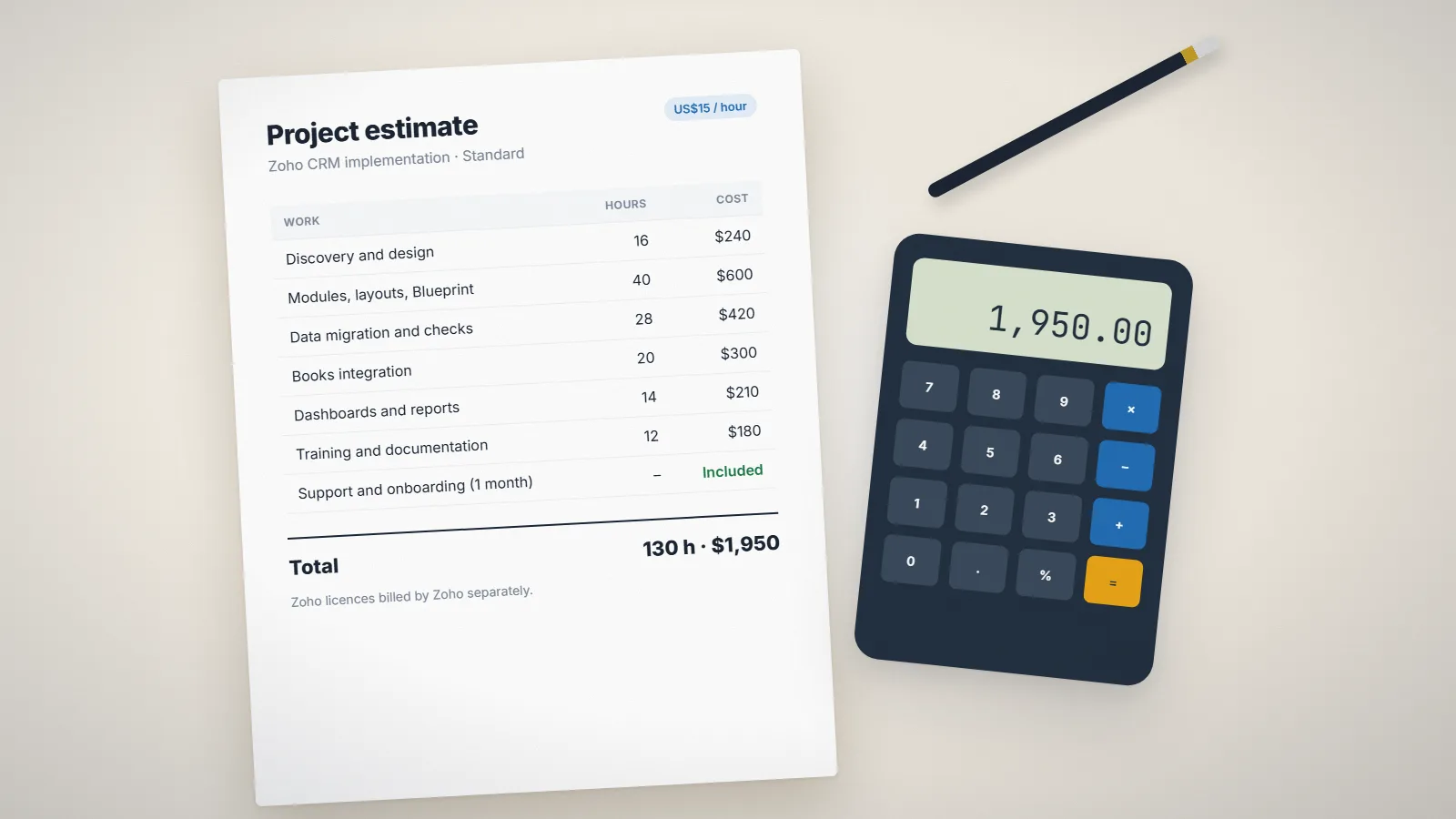
A team of five with a spreadsheet of contacts and one pipeline can be set up and live in a week or two of part-time work by one admin. A team of 30 with several pipelines, territories, a migration from another CRM and integrations with accounting or a website usually takes several weeks, and the data migration is most of it. Our guide to Zoho CRM implementation cost breaks down where the time goes.
Do it yourself if your process is simple and someone on the team has time to own it. Get help when you need integrations, data migration from another system, custom code in Deluge, or a process with approvals and hand-offs that a Blueprint should enforce. If Zoho CRM is one of several Zoho apps you are rolling out, the Zoho One implementation checklist covers the wider order of work. Still choosing a CRM? See Zoho CRM vs HubSpot and Zoho CRM vs Salesforce.
We build on Zoho. Our Zoho CRM implementation work covers setup, migration, automation and integrations, and once the basics are running you can connect Zoho CRM to an AI assistant to query it in plain English.
What to take from this
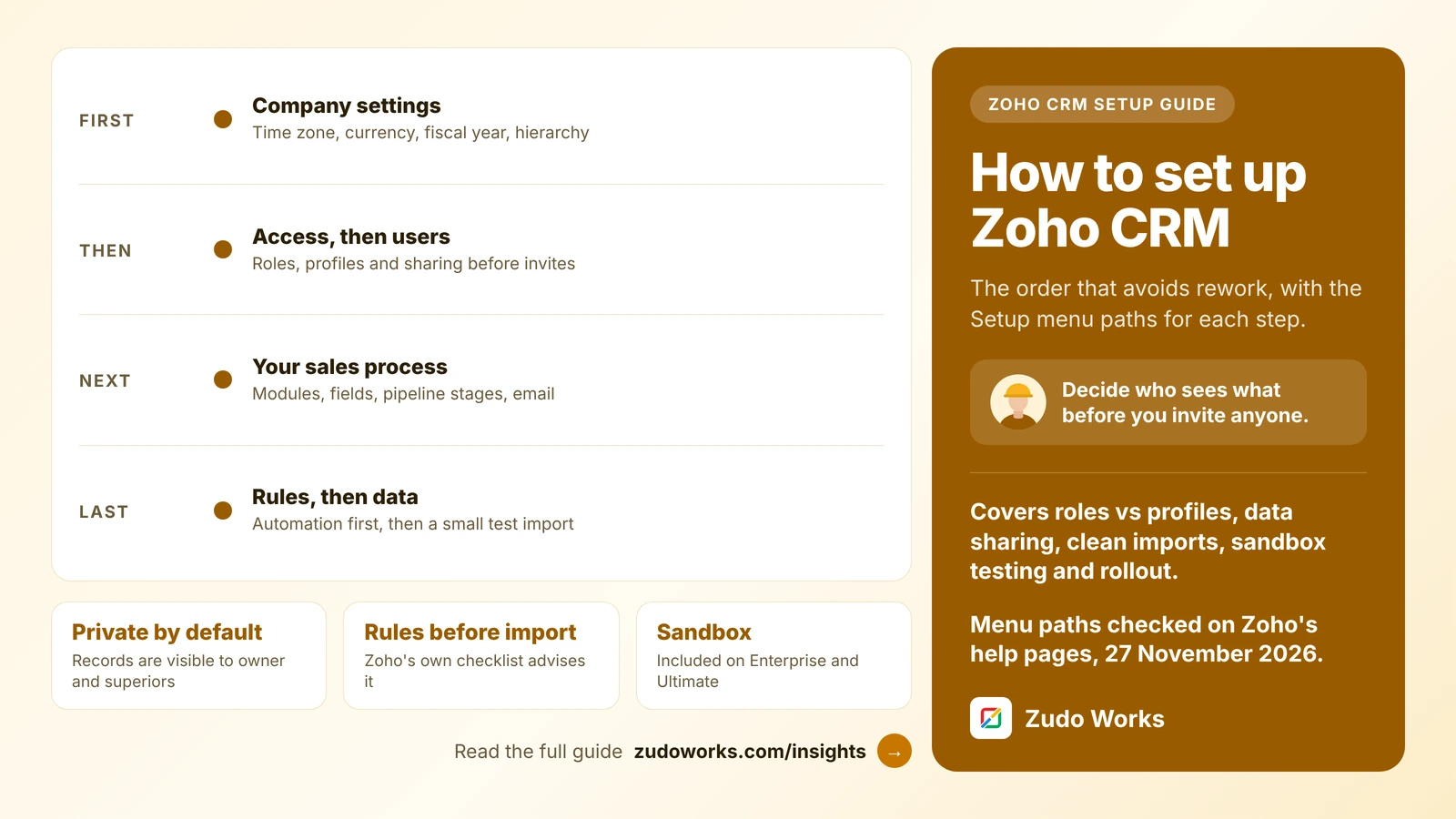
Set up Zoho CRM in this order: company settings, access, users, process, email, rules, then data. Decide stages, visibility and reports on paper before touching Setup. Keep records private until you have a reason to share them, import a small test file before the full one, and launch to a pilot group before the whole team. The facts and menu paths in this guide were checked against Zoho's help pages on 27 November 2026.
Watch and share
The same guide as a short video, on the channels where we post it. Share the one that suits the person you are sending it to.
Frequently asked questions
Frequently asked questions
How do I set up Zoho CRM for the first time?
Start in Setup with company settings: time zone, currency, fiscal year and hierarchy preference. Then create roles, profiles and data sharing settings, invite users, shape modules, fields and pipeline stages, connect email, add assignment and workflow rules, and import a small cleaned test file before the full data. Launch to a pilot group first.
How long does it take to set up Zoho CRM?
A small team with one pipeline and a spreadsheet of contacts can be live in one to two weeks of part-time admin work. Larger teams with several pipelines, a migration from another CRM and integrations usually take several weeks, most of it spent cleaning and moving data.
What is the difference between roles and profiles in Zoho CRM?
A role decides whose records a user can see, following your reporting lines: managers see records owned by roles below them. A profile decides what the user can do, such as which modules they can open and whether they can create, edit, delete, import or export records. Every user has one of each.
Should I set up workflows before importing data into Zoho CRM?
Yes. Zoho's implementation checklist recommends configuring automation before bringing data in, so imported records are assigned to owners and processed by your rules. Test with a small import first and check that the rules fired as expected.
What file types can I import into Zoho CRM?
Zoho's import help lists CSV, XLS, XLSX and vCard files. CSV size limits depend on edition, from 5 MB on Free to 25 MB on Enterprise and Ultimate, and Excel files are limited to 5,000 records per batch. Split larger files and import Accounts before Contacts and Deals.
Does Zoho help with setting up Zoho CRM?
Paid customers can book Zoho's Onboarding in 360 minutes: four one-hour online sessions with a Zoho expert, which Zoho states is free for paid customers and valid for 15 days from purchase. It guides you through settings but does not include custom configuration, data migration builds or integrations work.