In short
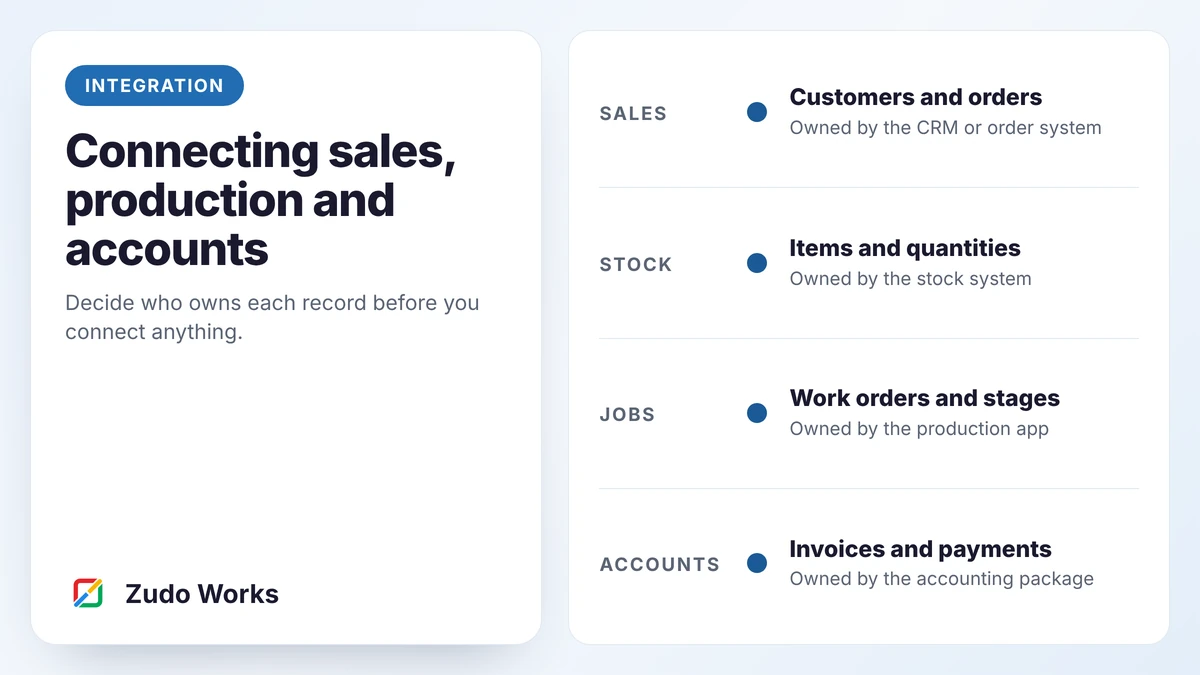
Give every record one owning system: customers in the CRM, items and quantities in the stock system, jobs in the production app, invoices in accounts. Carry the same order, item and customer IDs through all of them. Connect with the simplest method that works, send events as they happen, and make every failure visible to a person with a retry.
A typical small manufacturer enters the same order four times: in a quote, on a job sheet, on a dispatch note and on an invoice. Each copy is a chance for a different quantity, a different price or a different address.
Connecting the systems removes the retyping. Done carelessly, it also creates a new problem: data that changes by itself, for reasons nobody can trace. This guide is about doing it carefully.
Start with ownership, not technology
Before choosing a tool, fill in one table. For every kind of record, name the one system allowed to create and change it.
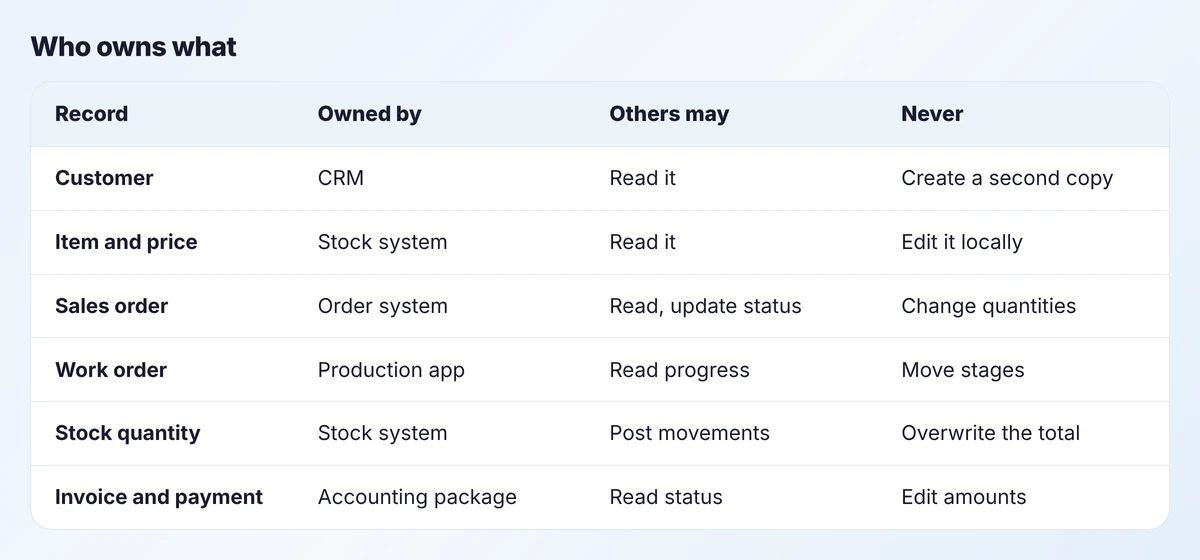
The rule that follows is strict. Other systems may read a record, and may ask the owner to change it, but they keep no editable copy of their own. If a customer’s address is wrong, it is corrected in the CRM and flows outwards. It is never fixed on the invoice alone.
The stock quantity row deserves a note. Other systems should post movements, such as “issued 12” or “received 40”, and let the stock system work out the total. An integration that writes “quantity is now 236” will sooner or later overwrite a change it did not know about. Our inventory accuracy guide explains why that matters.
Shared IDs
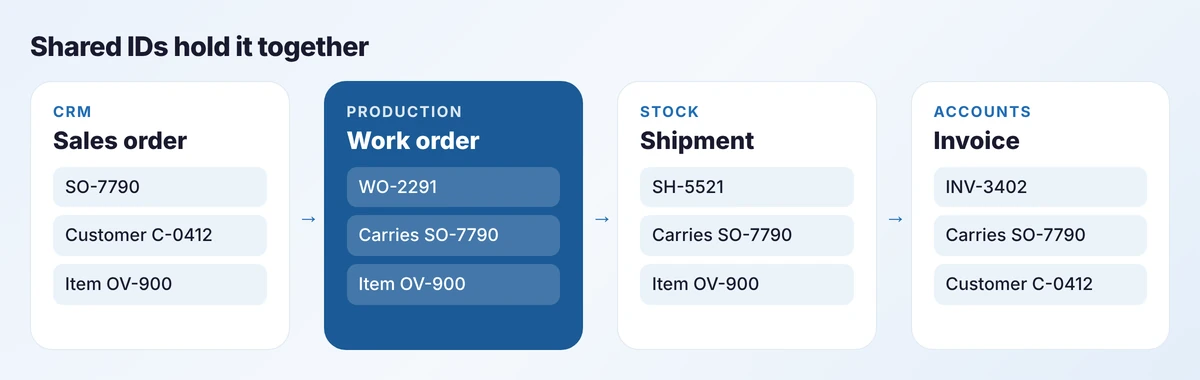
Systems connect through identifiers, and three matter most.
- Customer code. The same in the CRM and in accounts. Matching on company name fails the first time someone types “Ltd” in one and “Limited” in the other.
- Item code. One code per product and material, used everywhere. Clean this list before you integrate; it is the commonest cause of failed syncs.
- Sales order number. Carried onto the work order, the shipment and the invoice, so any of them leads back to the others.
Store the other system’s ID on each record as well. When a work order holds the sales order’s ID, an update can find its target directly and cannot create a duplicate by mistake.
The order-to-cash flow
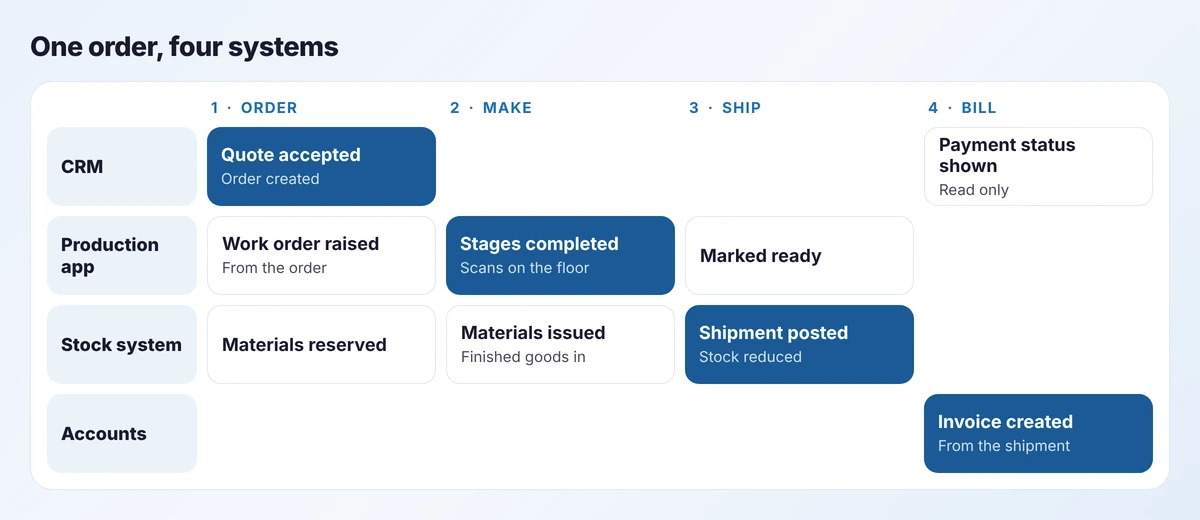
Read the diagram column by column. At each stage one system acts and the others are told.
- Order. An accepted quote becomes a sales order. That raises a work order and reserves materials.
- Make. Operators complete stages. Materials are issued and finished goods received, as movements.
- Ship. The stock system posts the shipment, which is the event that reduces stock.
- Bill. The shipment creates the invoice in accounts. Payment status flows back to the CRM so sales can see it.
Invoice from the shipment, not from the order. It means you bill what actually left the building, including part shipments.
Three ways to connect
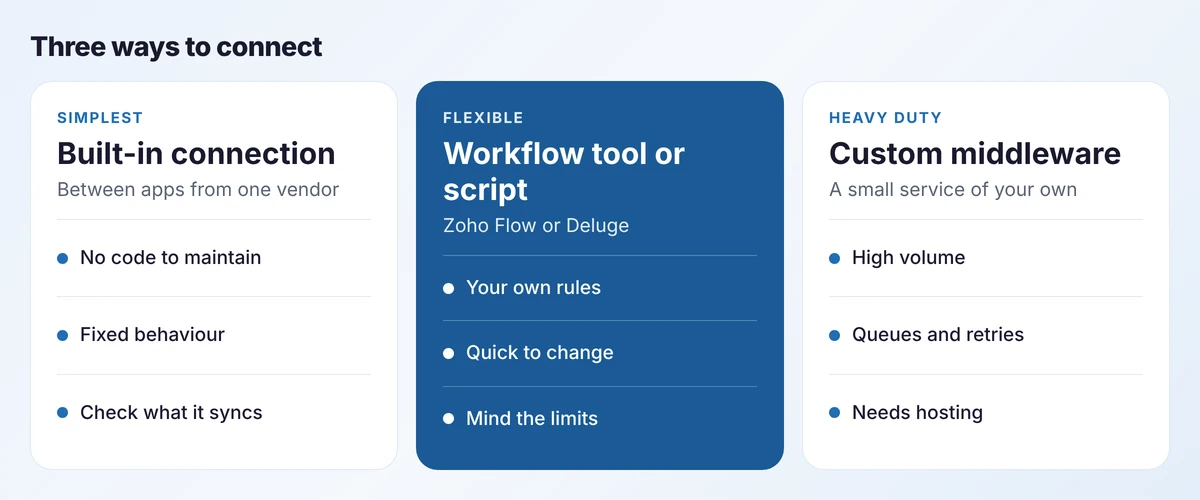
Built-in connections
Apps from one vendor usually connect to each other. Zoho Inventory, for example, integrates with Zoho Books and Zoho CRM, and with shipping carriers and online marketplaces. Use these first. Read exactly what each one syncs, and in which direction, before relying on it.
A workflow tool or a script
When the built-in behaviour is not enough, a workflow tool such as Zoho Flow, or a Deluge function, applies your own rules: “when a sales order is confirmed and the item is made to order, create a work order with these stages.” This covers most small manufacturers’ needs. Know the limits. Workflow tools meter tasks by plan, and some triggers check for changes on a schedule of minutes, not instantly. Scripts have execution limits per run. Our comparison of Zoho Flow, Deluge and custom middleware goes into detail.
Custom middleware
For high volumes, or when an outside system has an awkward interface, a small service of your own sits in the middle. It queues messages, retries failures and transforms data. It costs more to build and needs hosting and monitoring, so use it only when the first two will not do.
A note on the accounting side
Which accounting package you connect matters, and it varies by country. Zoho Books is published in country editions, including Australia, the United Kingdom, the United States and India, plus a global edition. New Zealand is not among the named editions at the time of writing. A New Zealand manufacturer therefore has two sensible options: use the global edition, or keep an accounting package built for New Zealand tax, such as Xero, and integrate with it.
Keeping your accounting package is a perfectly good decision. Your accountant knows it and your tax returns depend on it. The integration then sends invoices and bills to it and reads payment status back.
Agree it with your accountant
Before automating invoices, ask whoever does your accounts how they want them to arrive: as drafts or approved, with which tax codes, to which revenue accounts. Ten minutes here prevents a month-end clean-up.
Plan for failure
Every integration fails sometimes. A system is briefly unavailable, an item is missing from a list, a customer has no tax code. What matters is what happens next.
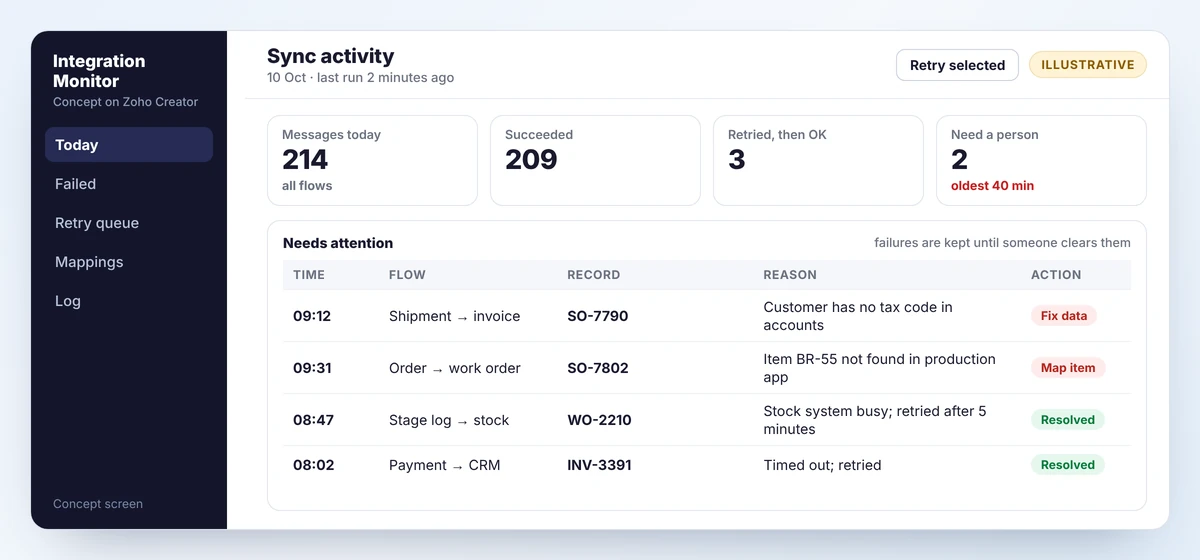
- Retry what may be temporary. Time-outs and busy responses are retried automatically, a few times, with a pause between.
- Tell a person about the rest. A missing item code will fail every time until someone fixes the data. It goes to a named person with the reason in plain words.
- Keep the message. A failed update is held, not dropped, so it can be re-sent once the cause is fixed.
- Make updates safe to repeat. Sending the same shipment twice must not create two invoices. Checking for the shared ID first prevents that.
A worked example: one order, end to end
An example joinery accepts a quote for 12 vanity units on Monday.
- Sales marks the quote as won in the CRM. Sales order SO-7790 is created with customer code C-0412.
- Within a minute a work order appears in the production app, carrying SO-7790. Nobody typed it.
- Through the week, operators scan each stage. The CRM shows “in assembly” on the order, so sales can answer the customer without ringing the floor.
- On Friday dispatch ships 12 units. The stock system posts shipment SH-5521.
- The shipment creates invoice INV-3402 in accounts, as a draft for the bookkeeper to approve.
- When the customer pays, the CRM shows the order as paid.
The order was typed once, at step one. Every later record was created from it and carries its number.
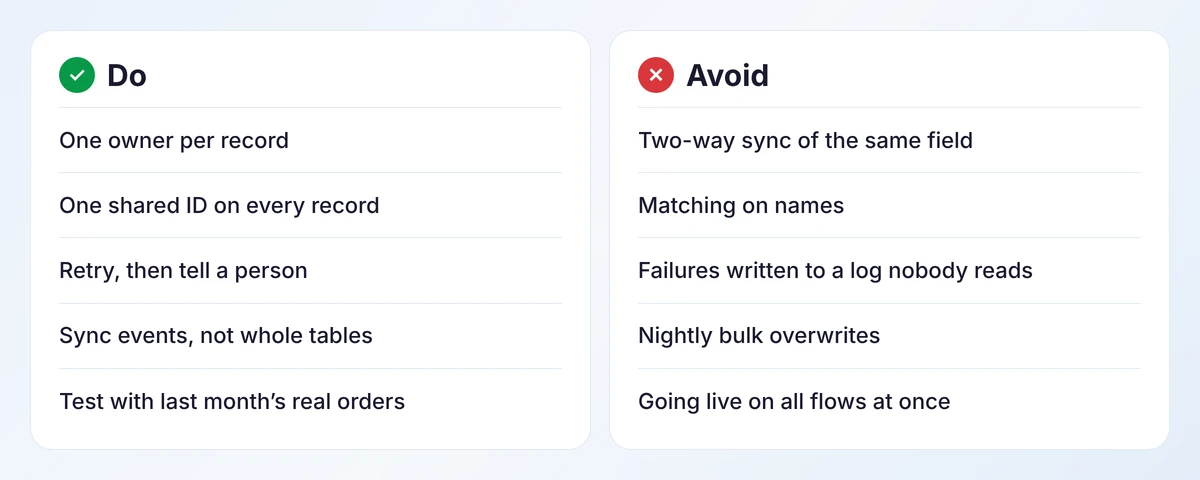
Rules worth keeping
Where to begin
- Fill in the ownership table with the people who use each system.
- Clean the item and customer lists and agree the shared codes.
- Connect one flow, usually order to work order, and run it for two weeks.
- Add the monitor before adding the second flow.
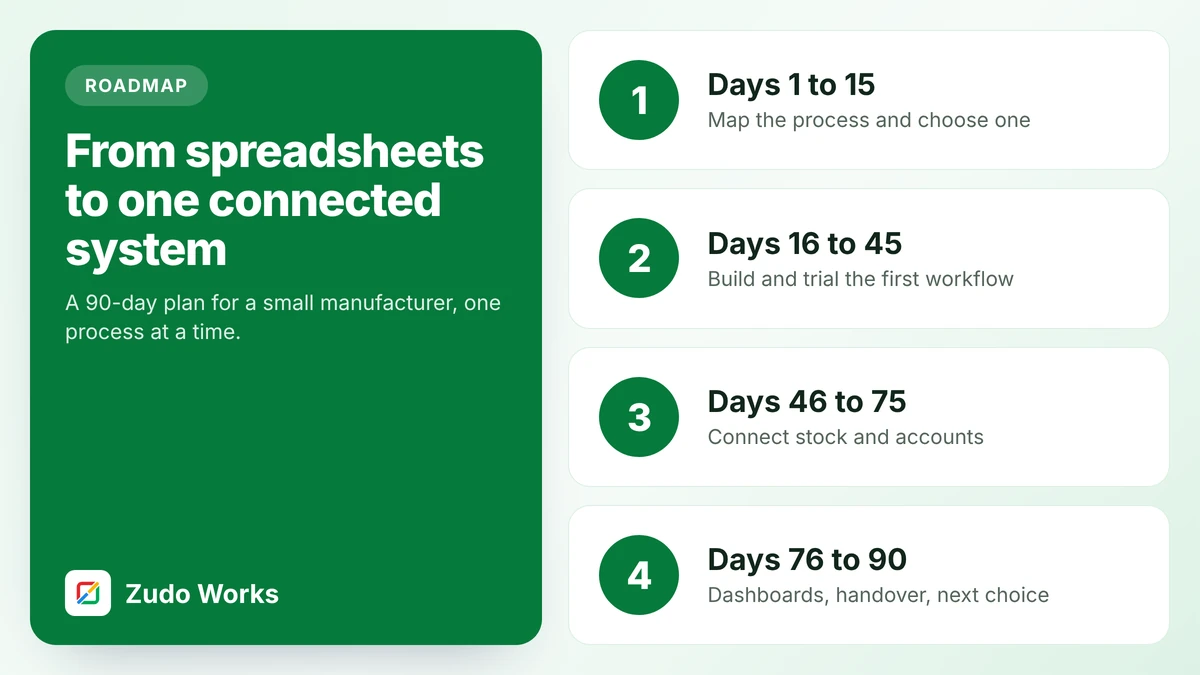
The 90-day roadmap shows where integration fits in a wider plan.
Frequently asked questions
The one system allowed to create and change a given kind of record. Other systems read from it or ask it to make changes. Deciding this for customers, items, orders, stock and invoices is the first step in any integration.
Data can flow in both directions overall, but each field should have one owner. Two systems both editing the same field leads to changes overwriting each other.
Yes. Many manufacturers keep the accounting package their accountant already uses and connect it to their order and production systems. Invoices and bills are sent to it, and payment status is read back.
Usually not. Built-in connections plus a workflow tool or script cover most small manufacturers. Middleware is worth it for high volumes or for systems with difficult interfaces.
A well-built integration retries temporary errors automatically, holds the failed message, and tells a named person the reason for anything that needs a data fix. Failures should never be silent.
Sources
Product capabilities change. We checked these pages in October 2026; confirm anything you plan around.
Related services: Zoho integrations · Deluge development · Zoho implementation for manufacturers