Zoho CRM
Zoho CRM Blueprint: A Step-by-Step Setup Guide, With a Manufacturing Example
A Blueprint turns a sales process from a document nobody reads into steps the CRM enforces. Done well, it removes the follow-up chasing. Done badly, it blocks your team at every stage. This guide shows how to build one that people will actually use.

Quick answer
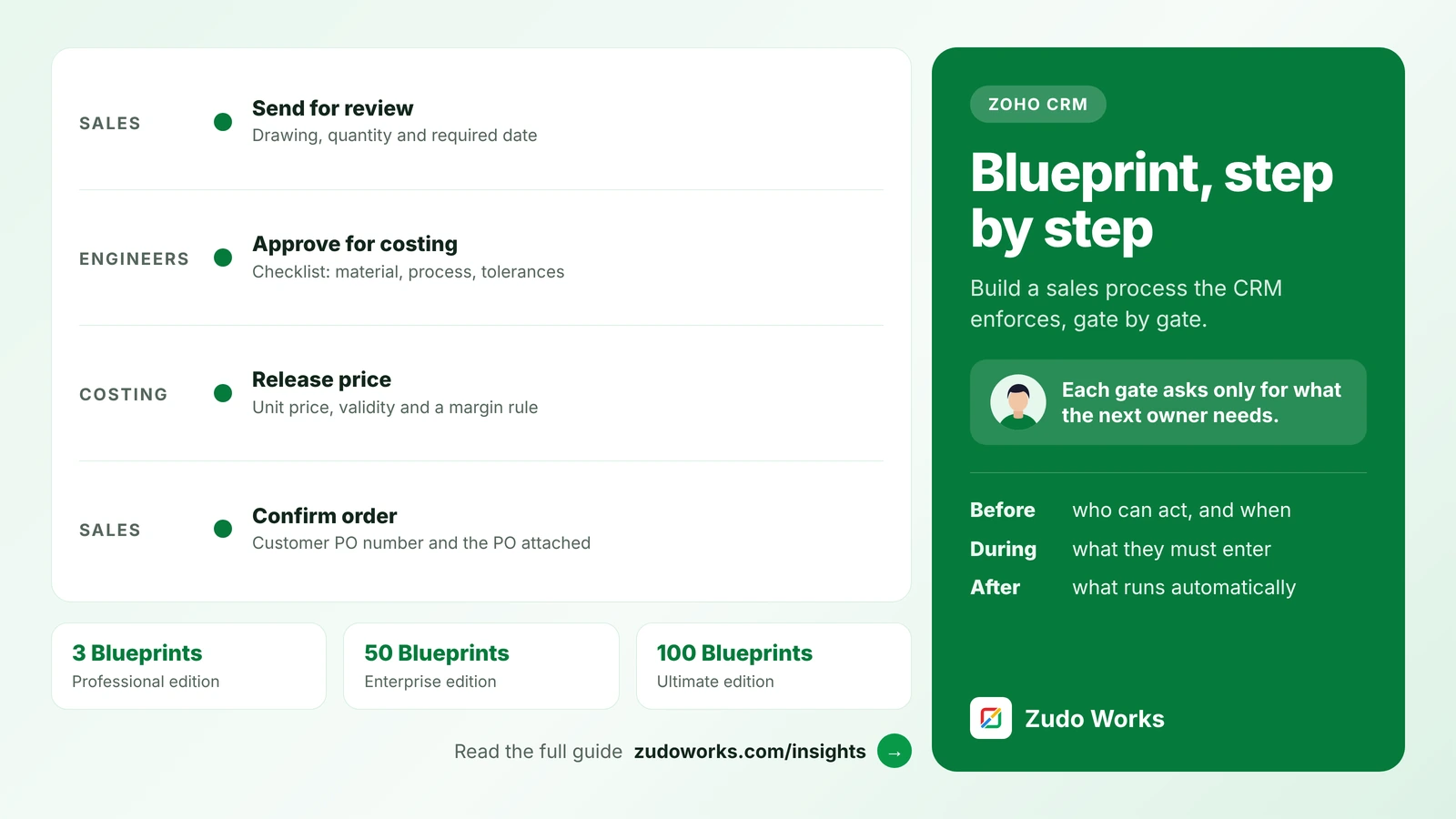
A Zoho CRM Blueprint enforces a process on a picklist field such as Stage: records move only through transitions, and each transition sets who can act, what they must enter and what happens automatically. Blueprint starts in the Professional edition (3 Blueprints); Enterprise allows 50 and Ultimate 100.
Most CRMs record what happened. A Blueprint in Zoho CRM controls what happens next. It ties a process to a picklist field, usually the deal stage, and only lets a record move to the next stage when the right person has supplied the right information.
Every fact below about editions, limits and settings was checked against Zoho’s feature comparison page and help documentation in October 2026. The example process is a design we use to explain the method, not a client project.
What a Blueprint does
Zoho describes a Blueprint as a flowchart of a business process. It has two building blocks:
- States are the stages of the process, taken from the values of the picklist you choose, for example the Stage field on Deals.
- Transitions are the moves between states. Each one appears as a button on the record, and each has three parts: Before (who can use it, and on which records), During (what they must enter) and After (what the CRM does automatically once it runs).
Once a record is in a Blueprint, the field that drives it is locked. A rep cannot simply change the stage from a dropdown; they have to use a transition and complete what it asks for.
Which Zoho CRM edition you need
Blueprint is not in the Free or Standard editions. The limits below come from Zoho’s complete feature list, and the Blueprint counts include the default Blueprints Zoho provides.
| Feature | Professional | Enterprise | Ultimate |
|---|---|---|---|
| Blueprints | 3 | 50 | 100 |
| Validation rules | 5 per layout | 10 per layout | 25 per layout |
| Approval processes | Not included | Up to 10 active per module | Up to 50 active per module |
| User-defined SLA actions in a Blueprint | No | Yes | Yes |
| Kiosks inside a transition | No | Yes | Yes |
Three Blueprints on Professional is enough for one main sales process and one or two others. If you need separate processes for several product lines or modules, plan for Enterprise. Limits change, so confirm them on Zoho’s feature comparison page before you design around them. Our Zoho CRM implementation cost guide explains how edition choice affects the total cost.
Blueprint, workflow rule or approval process?
These three tools overlap, and choosing the wrong one is the most common design mistake we see.
| Use | When | Example |
|---|---|---|
| Workflow rule | Something should happen automatically when a record is created or changes, with no human step | Email the regional manager when a deal over a set value is created |
| Approval process | One record needs a yes or no from a named approver before it is used | A discount above the agreed limit |
| Blueprint | A record passes through several stages, different people own different stages, and each stage needs specific information | Enquiry, technical review, costing, quote, order |
They also work together. A Blueprint transition can run the same kinds of actions a workflow can, and an approval can still sit on a single step inside the process.
The example: enquiry to order for a manufacturer
Sales processes in manufacturing have a feature generic CRM guides ignore: the quote depends on other departments. Engineering has to confirm the part can be made, and someone has to cost it, before sales can send a price. That makes it a good fit for a Blueprint, because each hand-off is a gate.
The process uses the Deals module and its Stage field, with five states:
| Transition | Before: who | During: required | After: automatic |
|---|---|---|---|
| Send for review | Sales | Drawing or specification attached, quantity, required date | Task for the engineering owner |
| Approve for costing | Engineering | Checklist: material, process and tolerances confirmed; note on risks | Field update and email to costing |
| Release price | Costing | Unit price and validity date, with a validation rule on the margin field | Task for sales to prepare the quote |
| Mark quote sent | Sales | Quote associated with the deal, follow-up date | Follow-up task on that date |
| Confirm order | Sales | Customer PO number and PO attached | Notify operations; optionally a webhook or function to create the sales order elsewhere |
Notice what is not here: no state for every internal conversation, and no mandatory field that the person at that step cannot answer. That restraint is what keeps a Blueprint usable.
Step by step: building it in Zoho CRM
- Create the Blueprint. Go to Setup, then Process Management, then Blueprint, and click Create Blueprint. Choose the module (Deals), the layout and the field (Stage). Entry criteria are optional; without them, every record created in that layout enters the process.
- Draw the states. Drag the stage values into the editor and connect them. The Start state is the picklist’s “None” value, so the first transition takes a new record into its first real stage.
- Add transitions between states and give each a verb-based name, such as “Send for review”. Names can be up to 50 characters.
- Set Before. Choose who can run each transition (CRM users, or portal users) and add criteria that control when the button appears, for example only after a drawing has been attached.
- Set During. Add fields from the deal or related modules and mark them mandatory or optional, add validation messages, checklists, notes, attachments, associated items such as tasks or quotes, and short instructions.
- Set After. Add email notifications, tasks, field updates, new records, tags, webhooks or custom functions. Our Deluge script examples show the kind of logic a function can add.
- Add a common transition such as “Mark lost”. A common transition is available from every state, so you do not have to draw an exit from each one.
- Test before you publish. Zoho’s documentation points to Sandbox for testing a Blueprint without touching live data. Run a dozen deals through every path, including the awkward ones.
Automatic transitions, loops and SLAs
Three newer options solve problems that used to need workarounds, and most guides skip them:
- Automatic transitions move a record to another state if nobody acts within a set time. Zoho’s example is a five-day wait. In our process, a quote with no response could move automatically to a follow-up state.
- Same-state loops are transitions whose start and end state are the same, so an action can be repeated until it succeeds. “Log follow-up call” on the Quote sent state is a natural use.
- SLAs set the maximum time a record may stay in a state, who is alerted and when, including alerts before the deadline. From Enterprise, the SLA can also run actions of its own, such as a field update, a task or a webhook. A technical review that sits for a week is exactly what an SLA should catch.
What your team sees
On the record, a Blueprint strip shows the current state and the available transition buttons. Transition owners also see their pending items under My Jobs. Clicking a button opens a short form with the During items.
Users can save a transition as a draft and finish it later, with some exceptions Zoho lists: not when layout rules run, when the form has only messages, when a widget is used, or in a continuous Blueprint. Blueprint also works in the Zoho CRM mobile apps, which matters for sales staff who visit factories and customers.
Six mistakes to avoid
- Too many states. Model hand-offs between people, not every activity. Five to seven states is plenty for most sales processes.
- Mandatory fields nobody can fill. If costing cannot know the delivery date, do not make it mandatory at costing.
- Forgetting integrations and imports. Once a field drives a Blueprint, Zoho allows changes to it only through specific routes such as the transition API, workflow field updates and functions. Check any integration that writes the stage before you go live.
- No way back. Real deals move backwards. Add transitions from costing back to technical review, or a loop, instead of forcing people to mark deals lost and recreate them.
- Testing on live deals. Test in a sandbox or on a small set of clearly marked test records first.
- Never looking at the data. Zoho provides Blueprint usage reports. Review where deals wait longest a month after launch, and adjust.
If you are moving from another CRM, rebuild the process as a Blueprint rather than copying old automations; our migration plan covers when to do that. For a manufacturer, the deal process is usually the first step towards a connected system; our guide to Zoho for manufacturing covers what comes after the order.
Frequently asked questions
Blueprint starts in the Professional edition, which allows 3 Blueprints. Enterprise allows 50 and Ultimate 100. Zoho counts its default Blueprints within these limits. Free and Standard do not include Blueprint.
Yes. You choose the module, layout and picklist field when you create a Blueprint, so it is not limited to Deals. Pick the module where the process actually lives, for example Leads for qualification or a module that tracks samples or service requests.
No. The field that drives the Blueprint is locked on records in the process, and users move records with transition buttons. Zoho allows the field to be changed through routes such as the transition API, workflow field updates and functions.
An approval process gets a yes or no from a named approver on one record. A Blueprint runs a whole multi-stage process with different owners and required information at each stage. Approval processes start in the Enterprise edition.
Yes. Users can see the Blueprint strip and run transitions from the Zoho CRM apps for Android and iOS, completing the required fields on the phone.
Related services: Zoho CRM implementation · Business process automation · Deluge development · Zoho development