Zoho CRM
Migrating from HubSpot or Salesforce to Zoho CRM: A Step-by-Step Plan
A CRM migration fails in predictable ways: broken relationships between records, missing activity history, automations nobody remembered to rebuild, and a sales team that quietly goes back to spreadsheets. This is the plan we follow to avoid all four.

Quick answer
Map objects and fields first, create users and picklists in Zoho CRM, add a legacy ID field to every module, then import in order: accounts, contacts, leads, deals, activities and attachments. Automations do not migrate, so rebuild the ones you still need. A small, clean migration takes two to four weeks.
Teams move to Zoho CRM for different reasons: per-user pricing that scales better, the rest of the Zoho suite (Books, Desk, Campaigns, Analytics) working together, or simply wanting more control over customization. Whatever the reason, the migration itself follows the same shape.
This guide covers moves from both HubSpot and Salesforce, because the steps are almost identical. Where the two differ, we say so.
Before you start: decide what not to migrate
The cheapest record to migrate is the one you leave behind. Before exporting anything, agree on:
- Inactive records. Contacts with no activity in several years, bounced emails and test records. Archive them in a spreadsheet instead of importing them.
- Unused fields. Most CRMs collect fields over the years that nobody fills in. Export a field-usage report and drop anything that is empty in most records.
- Duplicate records. Clean duplicates in the old system or in the export files. Zoho CRM can block duplicates on import, but it cannot decide which version of a contact is correct.
This step usually removes a large share of the data and makes everything after it faster.
Step 1: Map objects and fields
Each CRM names things differently. A typical mapping looks like this:
| HubSpot | Salesforce | Zoho CRM |
|---|---|---|
| Companies | Accounts | Accounts |
| Contacts | Contacts | Contacts |
| Contacts (lifecycle stage “lead”) | Leads | Leads |
| Deals | Opportunities | Deals |
| Products and line items | Products and opportunity products | Products, and Quotes or deal subforms |
| Tickets | Cases | Cases module, or Zoho Desk |
| Notes, calls, meetings, tasks | Notes, Events, Tasks | Notes, Calls, Meetings, Tasks |
| Custom objects | Custom objects | Custom modules |
Two decisions matter most here:
- Leads versus contacts. HubSpot keeps everyone as a contact with a lifecycle stage. Zoho CRM, like Salesforce, separates unqualified leads from contacts. Decide which lifecycle stages become Leads and which become Contacts, or the sales team will be confused on day one.
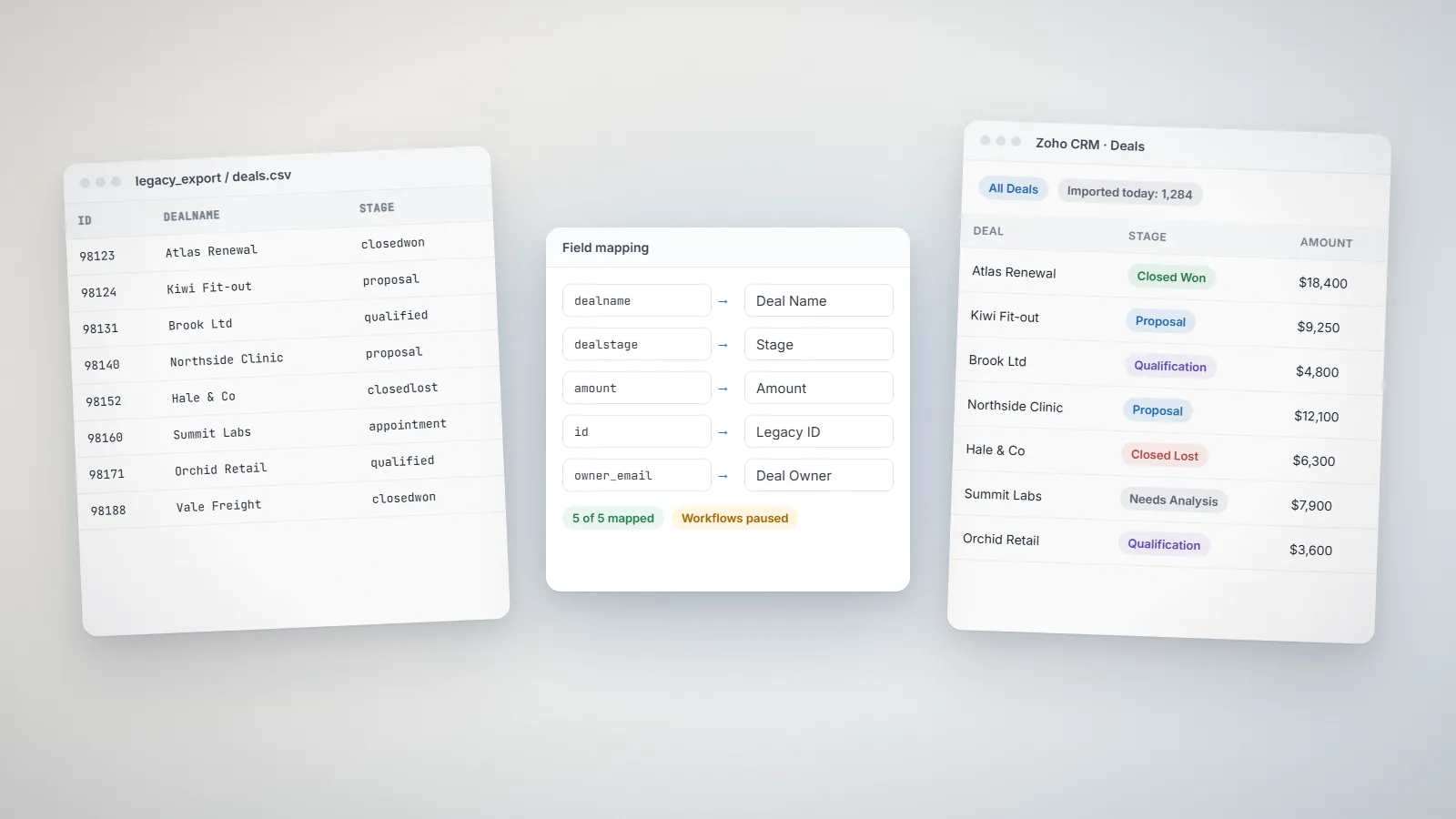
- Picklist values. Deal stages, lead sources and industries must match exactly, character for character, before import. Build them in Zoho CRM first, then map the old values to them.
Put the mapping in a shared spreadsheet: old object, old field, new module, new field, transformation (if any). It becomes the specification for the whole project.
Step 2: Prepare Zoho CRM before importing
- Users and roles. Create every user who owns records, including people who have left (you can deactivate them after import). Ownership is matched by email address.
- Custom fields and modules. Create them from the mapping sheet.
- A legacy ID field on every module, for example HubSpot ID or Salesforce ID. This is how related records find each other during import, and it saves hours of debugging later.
- Turn off workflows and assignment rules during the import, or every imported deal will send an email to its owner.
Step 3: Export from HubSpot or Salesforce
HubSpot: export each object as CSV from its index view, including all properties, and use the associations export to keep links between companies, contacts and deals. Attachments and email bodies need separate handling.
Salesforce: the Data Export service produces a full set of CSV files, including record IDs and lookup IDs, which makes relationship mapping straightforward. Attachments and files are included as separate files you can map by parent ID.
Zoho CRM also includes a built-in migration option for moving data from other CRMs, including Salesforce and HubSpot exports. It handles standard objects well. For custom objects, complex relationships or data that needs cleaning, a controlled import using the steps below gives you more control.
Step 4: Import in the right order
Records that are referenced by others must exist first. The order we use:
- Users (already created in step 2)
- Accounts
- Contacts, linked to accounts through the legacy account ID
- Leads
- Products and price books
- Deals, linked to accounts and contacts
- Notes, calls, meetings and tasks, linked to their parent records
- Attachments and files
Run the whole sequence first in a sandbox or a trial org with a sample (for example 500 records per module). Fix mapping problems there, not in production.
Step 5: Rebuild automation, don’t copy it
Workflows, sequences, assignment rules, approval processes and email templates do not migrate between CRMs. This is the step most teams underestimate, and also the biggest opportunity: you get to rebuild only what still matters.
List every active automation in the old system with its trigger and outcome. Then rebuild it in Zoho CRM using the simplest tool that works:
- Workflow rules for field updates, emails, tasks and webhooks.
- Blueprint for stage-by-stage processes with required fields at each step.
- Assignment rules for lead routing.
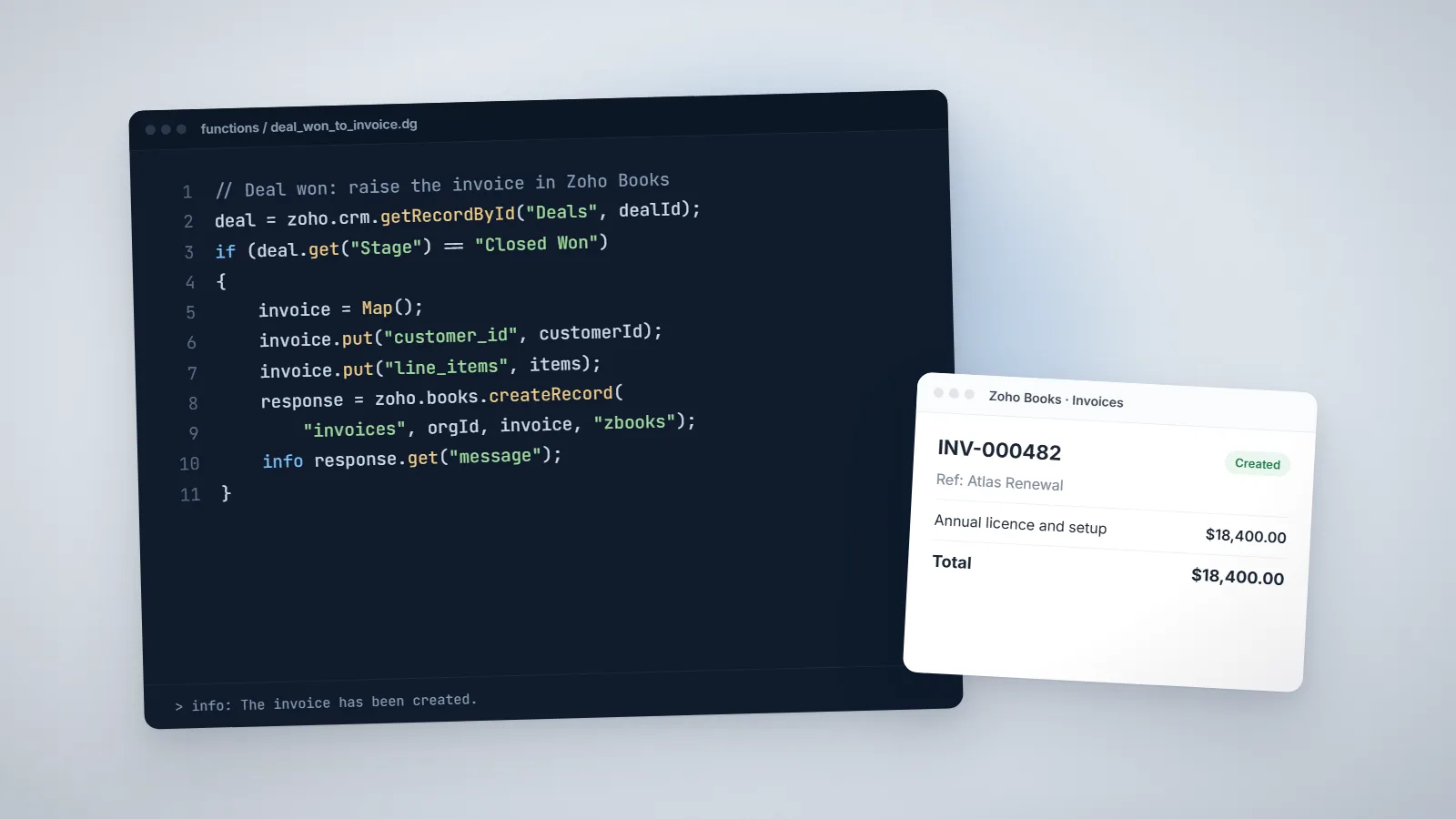
- Deluge functions for anything that needs logic, such as creating related records, deduplicating or calling another system. Our Deluge examples include several common ones.
Step 6: Test, cut over and validate
A clean cut-over usually happens over a weekend or a quiet day:
- Freeze changes in the old CRM.
- Run the final export and import in production.
- Compare record counts per module against the export, and spot-check 20 to 30 records end to end: account, contacts, deals, notes and attachments.
- Re-enable workflows and assignment rules.
- Keep the old CRM read-only for a few weeks in case someone needs to check history.
Step 7: Train people on their real work
Generic CRM training does not stick. Train each team on the five or six things they do every day, using their own migrated data: finding an account, logging a call, moving a deal, creating a quote. Then schedule a check-in two weeks later to fix the small annoyances that would otherwise push people back to spreadsheets.
We include one month of free support and onboarding after every build for exactly this reason. The first month is when small fixes make the biggest difference.
How long does it take?
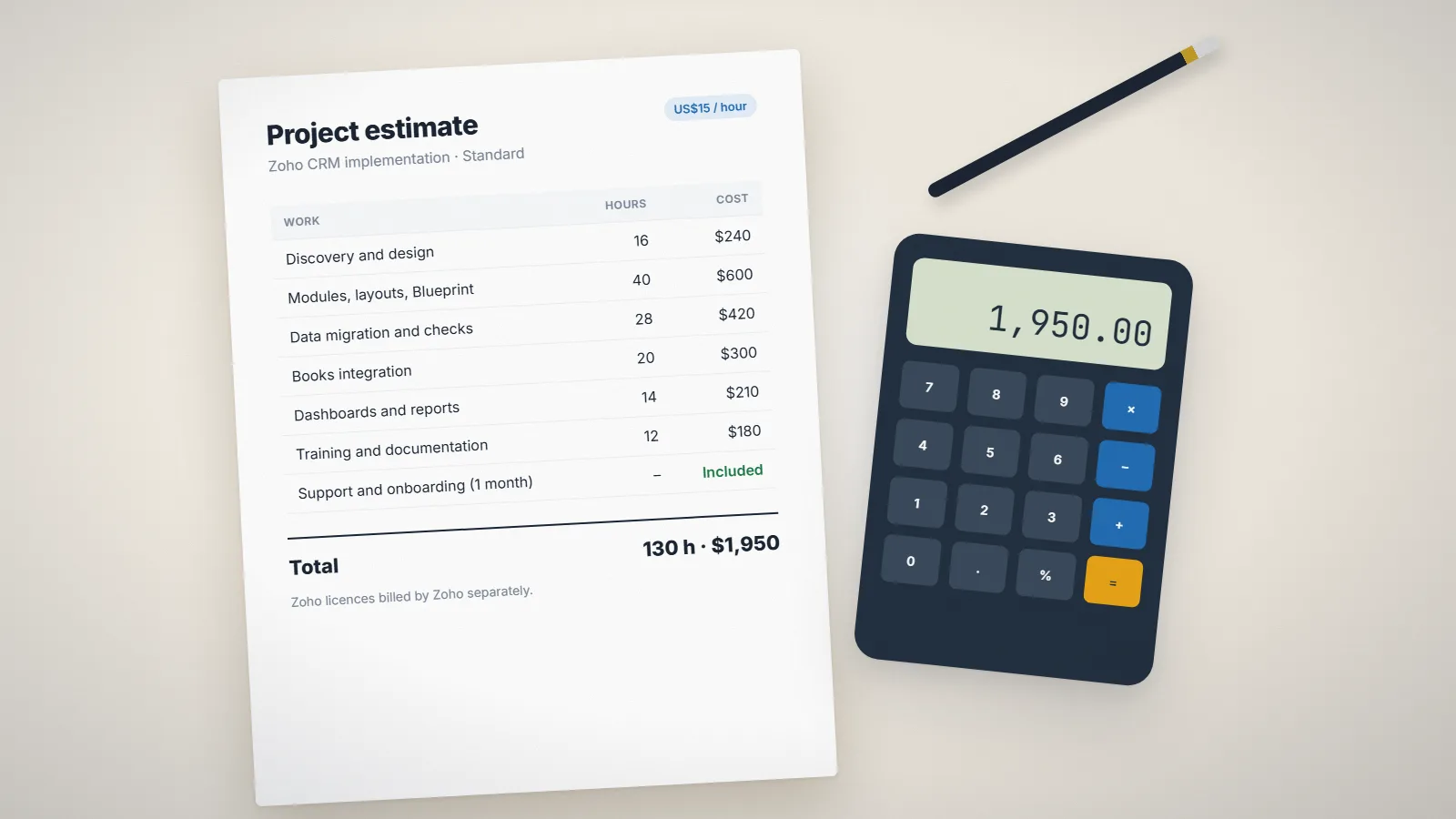
For a small team with standard objects and clean data, a migration can be done in two to four weeks including setup and training. Larger datasets, custom objects, multiple pipelines or integrations usually take six to ten weeks. Our Zoho CRM cost guide breaks down the effort, and our pricing calculator gives an indicative estimate for your own project.
Common problems and how to avoid them
| Problem | Why it happens | How to avoid it |
|---|---|---|
| Contacts not linked to accounts | Lookups were matched by name, and names differed slightly | Match on a legacy ID field, never on names |
| Wrong record owners | Users did not exist in Zoho CRM at import time | Create every owner first, including former staff, then deactivate them |
| Picklist values rejected or blank | Values in the file didn’t exactly match the Zoho CRM picklist | Build picklists first and map old values in the spreadsheet |
| Floods of automated emails | Workflows were active during the import | Switch off workflows and assignment rules until validation is complete |
| Dates shifted by a day | Time zones and date formats differed between systems | Export in ISO format and check a sample of date-time fields after the test import |
| Team keeps using the old CRM | The old system was left editable and training was generic | Make the old CRM read-only and train on real daily tasks |
Migration checklist
- Agree what not to migrate (inactive records, unused fields, duplicates)
- Write the object and field mapping sheet
- Choose the Zoho CRM edition based on the features you need
- Create users, roles, profiles, custom fields, modules and picklists
- Add legacy ID fields to every module
- Switch off workflows and assignment rules for the import
- Run a sample import in a sandbox or trial org and fix mapping issues
- Rebuild automation, templates and reports
- Freeze the old CRM, run the final import and validate counts
- Switch automation back on and train each team on their daily tasks
- Keep the old CRM read-only for a few weeks, then cancel it
Frequently asked questions
Logged emails can be migrated as notes or activity records linked to the right contact or deal. Live email sync is set up fresh in Zoho CRM by connecting each user's mailbox, which brings recent email back into the CRM from that point.
No. Automations, sequences, approval processes and templates must be rebuilt in Zoho CRM using workflow rules, Blueprint, assignment rules or Deluge functions. It is a good moment to drop automations that no longer matter.
Yes, until cut-over. Most of the work happens in a sandbox or trial org while the team keeps working in the old system. Changes are frozen only for the final export and import, usually over a weekend.
Add a legacy ID field to every module in Zoho CRM and import the old record IDs into it. Related records then reference those IDs during import, so contacts land on the right accounts and deals keep their contacts.
Related services: Zoho CRM implementation · Zoho integrations · Pricing · Zoho development