Deluge
Deluge Script Examples: 10 Real Automations for Zoho CRM, Creator and Books
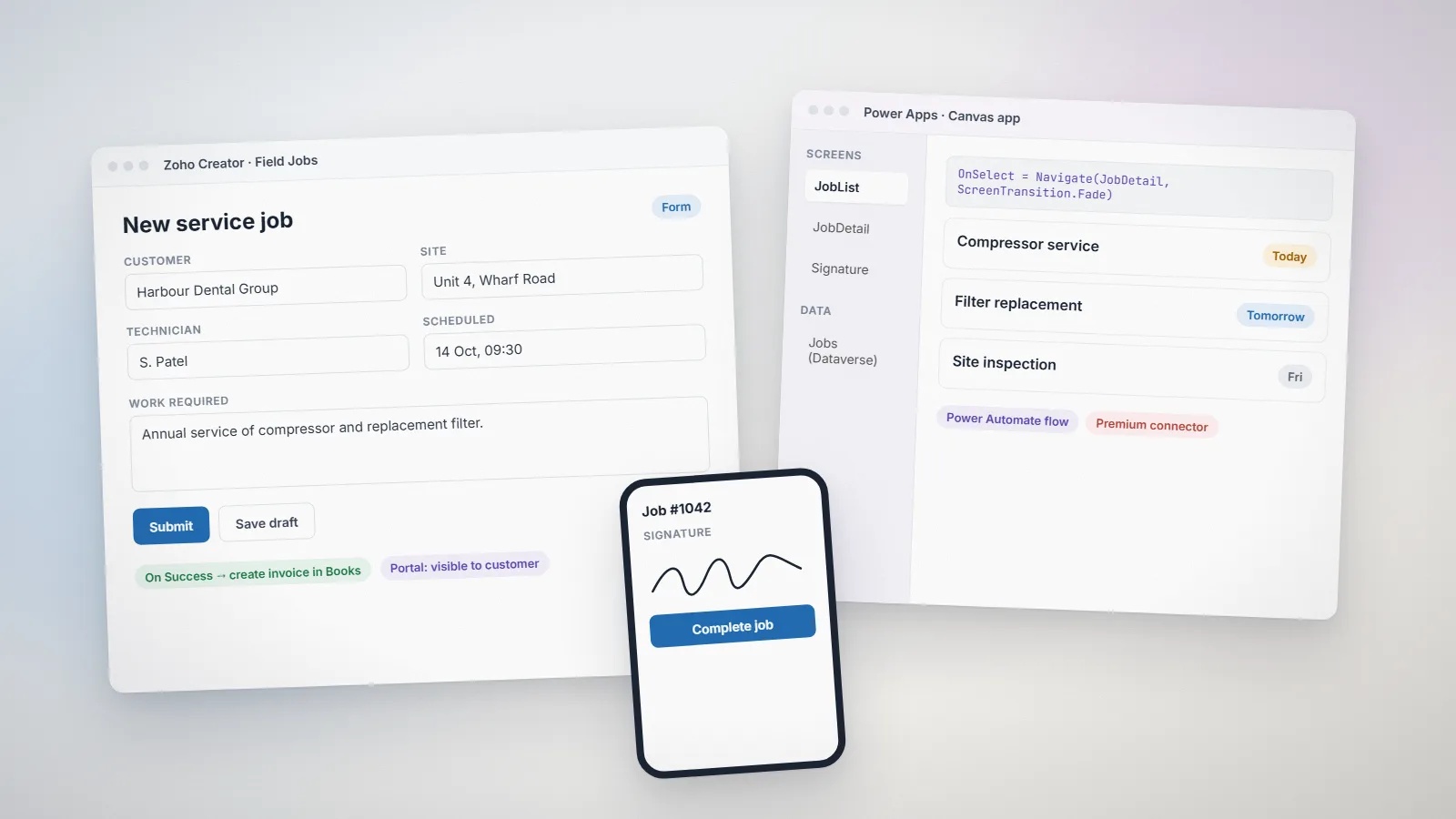
Deluge is the scripting language behind Zoho CRM functions, Zoho Creator apps, Zoho Books custom functions and more. These are ten scripts based on the automations we write most often, with notes on how and where to use them.

Quick answer
Deluge is Zoho's scripting language for automating CRM, Creator, Books and other Zoho apps. The most useful scripts create invoices from won deals, flag duplicate records, create follow-up tasks, send scheduled reminders and call external APIs with invokeurl. All ten examples below are patterns from real projects.
Deluge (Data Enriched Language for the Universal Grid Environment) is Zoho’s own scripting language. It is deliberately simple: maps, lists, loops and built-in tasks such as zoho.crm.getRecordById or zoho.books.createRecord that talk to other Zoho apps without you handling authentication yourself.
The examples below are simplified versions of scripts we use in client projects. Field API names in your account will differ, so treat them as patterns, not copy-and-paste solutions. Always test in a sandbox or on test records first.
Before you start
- Where Deluge runs: in Zoho CRM as functions attached to workflow rules, buttons, Blueprint transitions or schedules; in Zoho Creator on form and report events; in Zoho Books as custom functions and workflow actions.
- Field names: use API names, not display labels. In Zoho CRM you can see them under Setup > Developer Hub > APIs.
- Connections: calls to other services, including some Zoho apps, use a named connection that stores OAuth credentials. Create it once under Connections and reference it by name.
- Debugging: use
infoto print values while testing. Remove noisy output before going live.
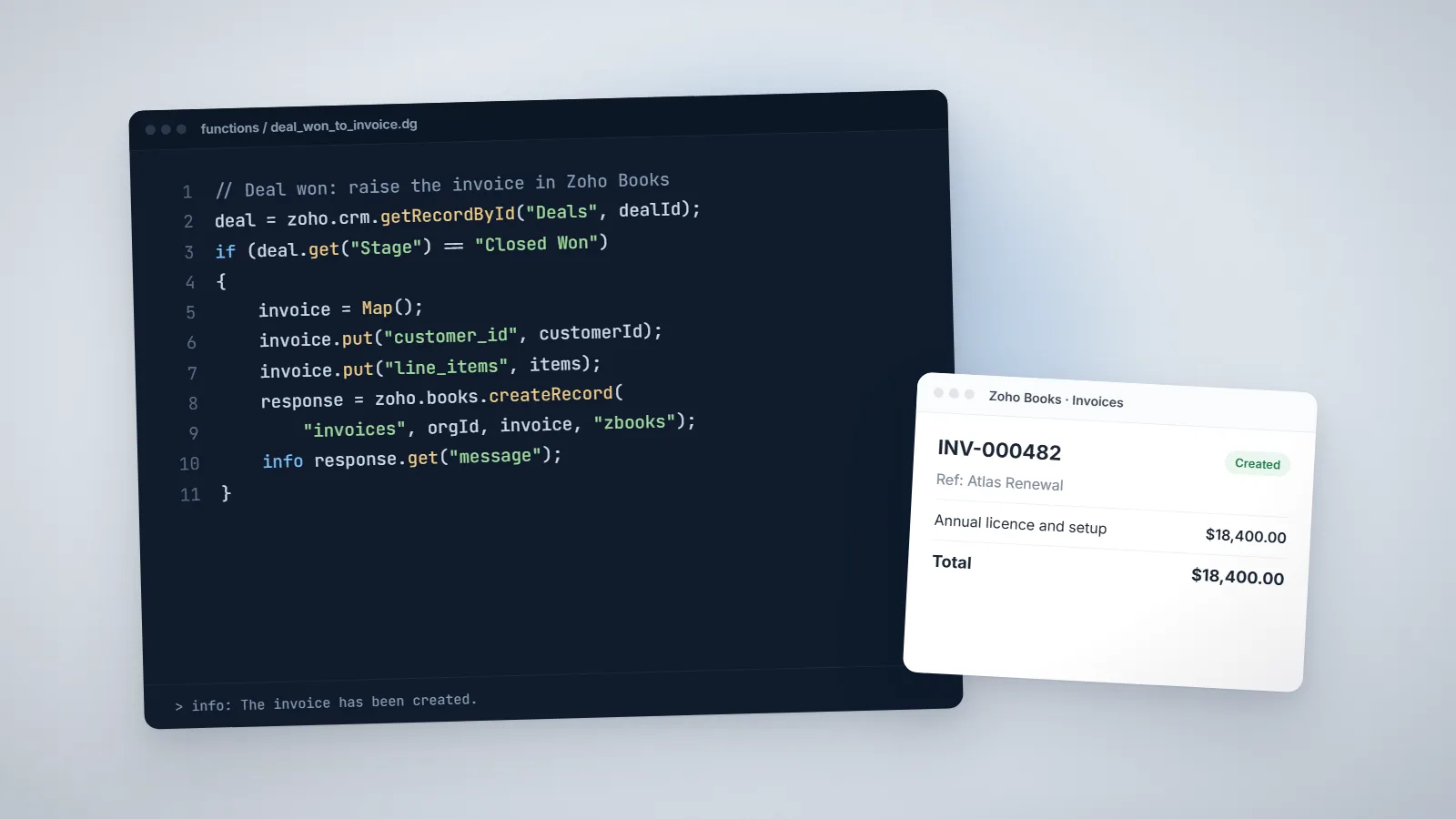
1. Create a Zoho Books invoice when a CRM deal is won
Use this as a workflow function on the Deals module, triggered when the stage changes to Closed Won. It assumes each account stores its Zoho Books customer ID in a custom field.
// Argument: dealId (mapped to the Deal ID in the workflow)
deal = zoho.crm.getRecordById("Deals", dealId);
account = zoho.crm.getRecordById("Accounts", deal.get("Account_Name").get("id"));
customerId = account.get("Books_Customer_ID");
if (customerId == null)
{
    info "No Books customer linked to this account";
    return;
}
lineItem = Map();
lineItem.put("name", deal.get("Deal_Name"));
lineItem.put("rate", deal.get("Amount"));
lineItem.put("quantity", 1);
items = List();
items.add(lineItem);
invoice = Map();
invoice.put("customer_id", customerId);
invoice.put("reference_number", deal.get("Deal_Name"));
invoice.put("line_items", items);
response = zoho.books.createRecord("invoices", "YOUR_ORG_ID", invoice, "zbooks");
info response.get("message");
Why it helps: no one re-types deal values into accounting, and the invoice reference ties back to the deal.
2. Flag duplicate contacts by email
Zoho CRM can block exact duplicates on unique fields, but contacts often arrive through imports and integrations with slightly different data. This function runs on contact creation and flags the new record if another contact already has the same email.
// Argument: contactId
contact = zoho.crm.getRecordById("Contacts", contactId);
email = contact.get("Email");
if (email != null && email != "")
{
    matches = zoho.crm.searchRecords("Contacts", "(Email:equals:" + email + ")");
    if (matches.size() > 1)
    {
        update = Map();
        update.put("Possible_Duplicate", true);
        zoho.crm.updateRecord("Contacts", contactId, update);
    }
}
A saved view filtered on Possible Duplicate then gives an admin a daily clean-up list.
3. Create a follow-up task when a lead is contacted
// Argument: leadId. Trigger: Lead Status changes to "Contacted"
lead = zoho.crm.getRecordById("Leads", leadId);
task = Map();
task.put("Subject", "Follow up with " + lead.get("Full_Name"));
task.put("Due_Date", zoho.currentdate.addDay(3).toString("yyyy-MM-dd"));
task.put("What_Id", leadId);
task.put("$se_module", "Leads");
task.put("Owner", lead.get("Owner").get("id"));
zoho.crm.createRecord("Tasks", task);
Why it helps: follow-ups stop depending on memory, and managers can report on overdue tasks.
4. Email owners about deals past their closing date
Schedule this function to run every weekday morning.
today = zoho.currentdate.toString("yyyy-MM-dd");
deals = zoho.crm.searchRecords("Deals", "((Closing_Date:less_than:" + today + ")and(Stage:not_equal:Closed Won)and(Stage:not_equal:Closed Lost))");
for each deal in deals
{
    owner = deal.get("Owner");
    sendmail
    [
        from: zoho.adminuserid
        to: owner.get("email")
        subject: "Deal past closing date: " + deal.get("Deal_Name")
        message: "Please update the stage or closing date for " + deal.get("Deal_Name") + "."
    ]
}
Search results are paginated, so for large pipelines loop through pages with the page parameter of searchRecords.
5. Call an external API and save the result
This pattern fetches data from another system with invokeurl and writes it back to the record. Here a custom button looks up a company in an external service using a stored connection.
// Argument: accountId
account = zoho.crm.getRecordById("Accounts", accountId);
response = invokeurl
[
    url: "https://api.example.com/companies?domain=" + account.get("Website")
    type: GET
    connection: "example_api"
];
if (response.get("employees") != null)
{
    update = Map();
    update.put("Employees", response.get("employees"));
    zoho.crm.updateRecord("Accounts", accountId, update);
}
return "Company details updated";
6. Validate a Zoho Creator form before it is saved
Put this in the form’s On Validate event. It stops the record from saving and shows a message.
if (input.Quantity <= 0)
{
    alert "Quantity must be at least 1.";
    cancel submit;
}
if (input.Delivery_Date < zoho.currentdate)
{
    alert "Delivery date cannot be in the past.";
    cancel submit;
}
7. Keep an activity log in Zoho Creator
In the On Success event of an Orders form, add a row to a separate log form. This gives you a simple audit trail that reports and dashboards can use.
insert into Activity_Log
[
    Added_User = zoho.loginuser
    Order = input.ID
    Action = "Order " + input.Status
    Logged_At = zoho.currenttime
];
8. Totals and counts across related records
Creator can fetch and aggregate records directly. This example updates a customer’s open order count and total value whenever an order is saved.
openOrders = Orders[Customer == input.Customer && Status == "Open"];
customer = Customers[ID == input.Customer];
customer.Open_Orders = openOrders.count();
customer.Open_Value = Orders[Customer == input.Customer && Status == "Open"].sum(Amount);
9. Working with dates
Date logic comes up in almost every project: SLAs, renewals, reminders. A few useful patterns:
start = toDate("2026-01-15", "yyyy-MM-dd");
renewal = start.addYear(1);
daysLeft = zoho.currentdate.daysBetween(renewal);
if (daysLeft <= 30)
{
    info "Renewal due in " + daysLeft + " days";
}
weekday = zoho.currentdate.getDayOfWeek();  // 1 = Sunday ... 7 = Saturday
10. Handle errors instead of failing silently
Scripts that call other systems will eventually meet a timeout or an unexpected response. Wrap risky calls and record what happened.
try
{
    response = zoho.books.createRecord("invoices", "YOUR_ORG_ID", invoice, "zbooks");
    if (response.get("code") != 0)
    {
        info "Books returned an error: " + response.get("message");
    }
}
catch (e)
{
    sendmail
    [
        from: zoho.adminuserid
        to: "admin@yourcompany.com"
        subject: "Invoice automation failed"
        message: "Deal: " + dealId + "
Error: " + e
    ]
}
Good habits for maintainable Deluge
- One job per function. Small functions are easier to test and reuse.
- Comment the why, not the what. The next developer can read the code; they can’t read your reasons.
- Check for nulls before calling
.get()on lookups that may be empty. - Mind the limits. Each Zoho product sets limits on function execution time, API calls and emails per day. Batch work in scheduled functions rather than firing one call per record.
- Keep a list of automations: name, trigger, what it does, who owns it. It is the most useful document in any Zoho account.
If you have scripts that work but nobody understands, or automations you would like to build, our Deluge development service covers new functions, reviews and fixes.
How we test and deploy Deluge safely
- Write against test records first. Create a few records that cover the normal case and the edge cases: empty lookups, zero amounts, missing emails.
- Use the function editor’s test run with a test record ID, and print key values with
info. - Attach the function to its trigger (workflow, button, schedule) only after it behaves correctly in isolation.
- Check limits. If a scheduled function processes many records, test it with a realistic volume.
- Document it: name, trigger, purpose, fields touched and owner, in your automation list.
- Watch the first week of live runs, especially anything that sends email or creates records in another app.
Frequently asked questions
Deluge is Zoho's scripting language. It runs inside Zoho CRM, Zoho Creator, Zoho Books, Zoho Desk and other Zoho apps, and has built-in tasks for reading and writing records across Zoho products, sending email and calling external APIs.
Not for anyone who has written a spreadsheet formula or a little code. The syntax is small: maps, lists, conditions, loops and built-in tasks. The harder part is knowing each Zoho app's field API names, limits and events.
Under Setup, in Developer Hub, then Functions. Functions can be attached to workflow rules, custom buttons, Blueprint transitions, related lists or schedules.
Yes. The invokeurl task calls any REST API. Store credentials in a named connection so tokens are refreshed automatically and secrets are not written into the script.
Related services: Deluge development · Business process automation · Zoho integrations · Zoho development