

People who search for a way to connect Zoho CRM to ChatGPT usually want one of two things. Some want to ask ChatGPT about their pipeline: which deals are stuck, what happened on an account, who needs a call this week. Others want ChatGPT’s writing and summarising inside the CRM itself, so that a rep can draft a reply or a new lead gets sorted without anyone opening a second window.
Those are different connections, and most guides on the subject describe only one of them, often a paid connector sold by the author. This guide covers the five routes that Zoho and OpenAI themselves provide. Every step and limit below was checked on Zoho’s and OpenAI’s own pages on 14 November 2026. Both vendors change these features often, so we link to the page that holds each detail. We build on Zoho, so read this with that in mind.
The short answer
- To ask questions about CRM data in ChatGPT: install the Zoho CRM plugin from ChatGPT’s own directory, or create a Zoho MCP server and add it to ChatGPT. The plugin is quicker. The MCP server gives you control over each action the assistant may take.
- To draft and summarise inside Zoho CRM: an administrator connects an OpenAI account to Zia, Zoho’s built-in assistant.
- To run an AI step when something happens in the CRM: build a flow in Zoho Flow, or write a Deluge function that calls the OpenAI API.
- Whichever you choose: start with read-only access, keep every change behind a confirmation, and find out where the data goes before customer records leave Zoho.
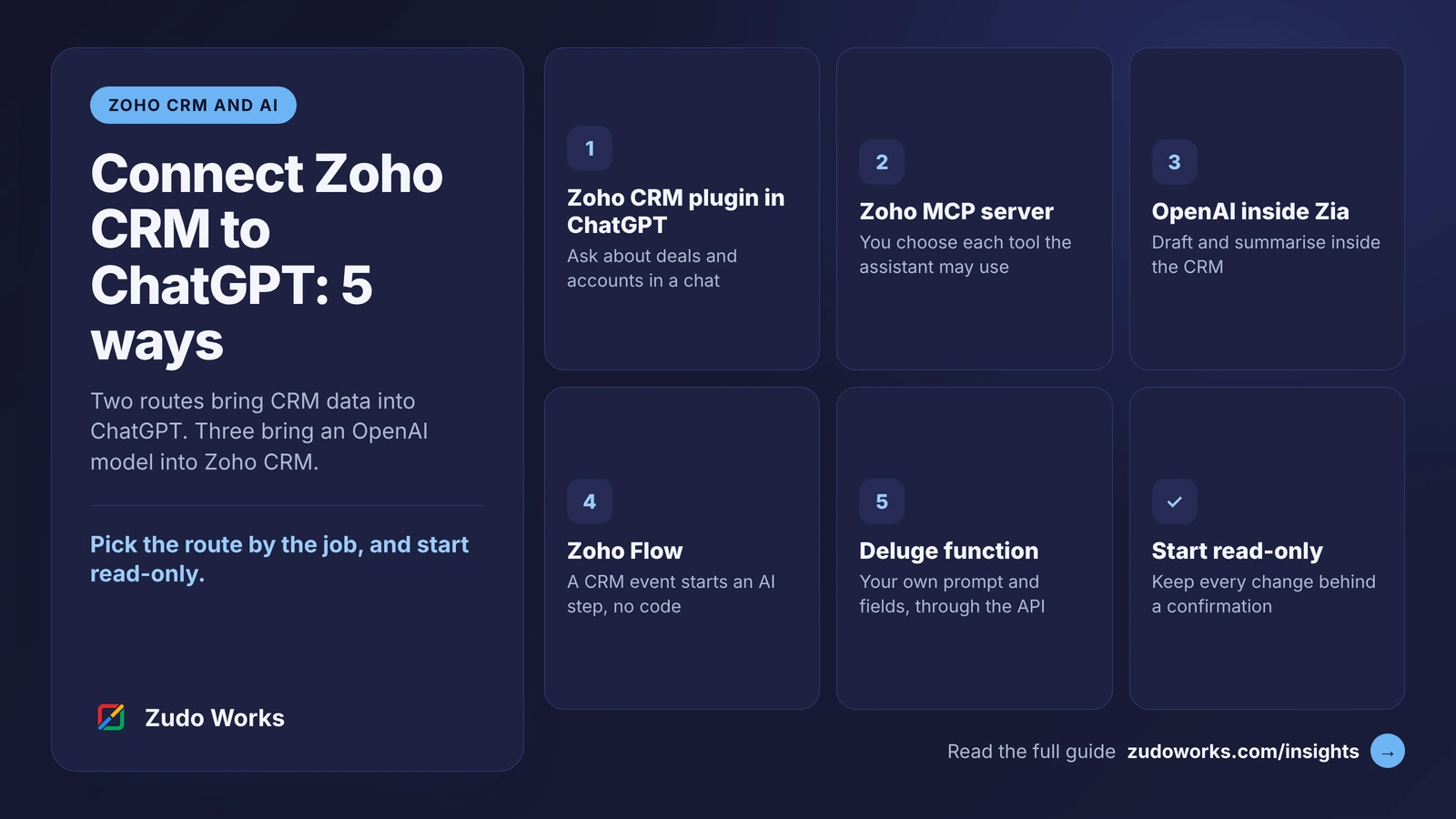
The five routes at a glance
| Route | Who sets it up | Best for |
|---|---|---|
| 1. Zoho CRM plugin in ChatGPT | Each user, or a workspace admin | Questions about deals, accounts and activities, asked in ChatGPT |
| 2. Zoho MCP server | A Zoho admin, then each user | The same questions in ChatGPT, with a tool list you choose |
| 3. OpenAI inside Zia | A CRM administrator | Drafting emails and summarising notes inside Zoho CRM |
| 4. Zoho Flow | Anyone who can build a flow | An AI step that runs after a CRM event, with no code |
| 5. Deluge function | A developer | A background step with your own prompt, fields and checks |
Routes 1 and 2 send CRM data out to ChatGPT when a person asks for it. Routes 3 to 5 send a piece of text to an OpenAI model and bring the reply back into Zoho. That difference decides the cost, the risk and who needs a ChatGPT subscription.
Route 1: the Zoho CRM plugin in ChatGPT
OpenAI’s plugin directory has a Zoho CRM plugin, with Zoho named as the developer. OpenAI describes it in one line: “Connect to sync Zoho CRM records and activities for use in ChatGPT.” The examples on the listing are to show the deals closing this month and flag the ones at risk, to find the contacts at an account and summarise recent activity, and to create a new lead from an email with a reminder for the next step.
Setting it up is short:
- Open the listing and choose Install plugin.
- Review the permissions it asks for and sign in to Zoho CRM when prompted.
- Start a new chat, describe what you need and ask ChatGPT to use the plugin.
Two limits are stated on the listing. Availability “depends on the plugin, your plan, and workspace settings”, and some connections need a workspace admin to set them up or approve them. The listing does not name the plans, so check inside your own ChatGPT account before you plan around it.
This is the right first step for a small sales team that already pays for ChatGPT. Its weakness is control: you accept the permissions the plugin asks for as a set.
Route 2: a Zoho MCP server
MCP, the Model Context Protocol, is an open standard that lets an AI assistant call tools in another system. Zoho runs its own MCP service, and its FAQ names ChatGPT among the supported clients, alongside Claude, Windsurf, Cursor and VS Code. You build a server, add only the Zoho CRM tools you want, and give its address to ChatGPT.
- Create the server. In the Zoho MCP console, choose Create MCP Server and name it for its job, for example
sales_readonly. - Add tools. Under Tools, choose Add Tools, filter to Zoho CRM and tick the actions you need. For a first server, search and get tools are enough.
- Copy the MCP URL from the Connect section. Treat it like a password.
- Add it to ChatGPT. Zoho’s guide gives the path as Profile > Settings > Apps > Create App: paste the URL, choose OAuth and create. OpenAI’s developer pages currently describe the same step as Plugins, the plus button, then Add custom MCP server, on ChatGPT on the web. The labels have moved more than once, so follow OpenAI’s page if the two differ.
- Authorise. A Zoho screen asks you to allow access. With Zoho’s default mode, Authorize on Demand, each user signs in with their own Zoho account.
- Test with a read-only question and compare the answer with a CRM report.
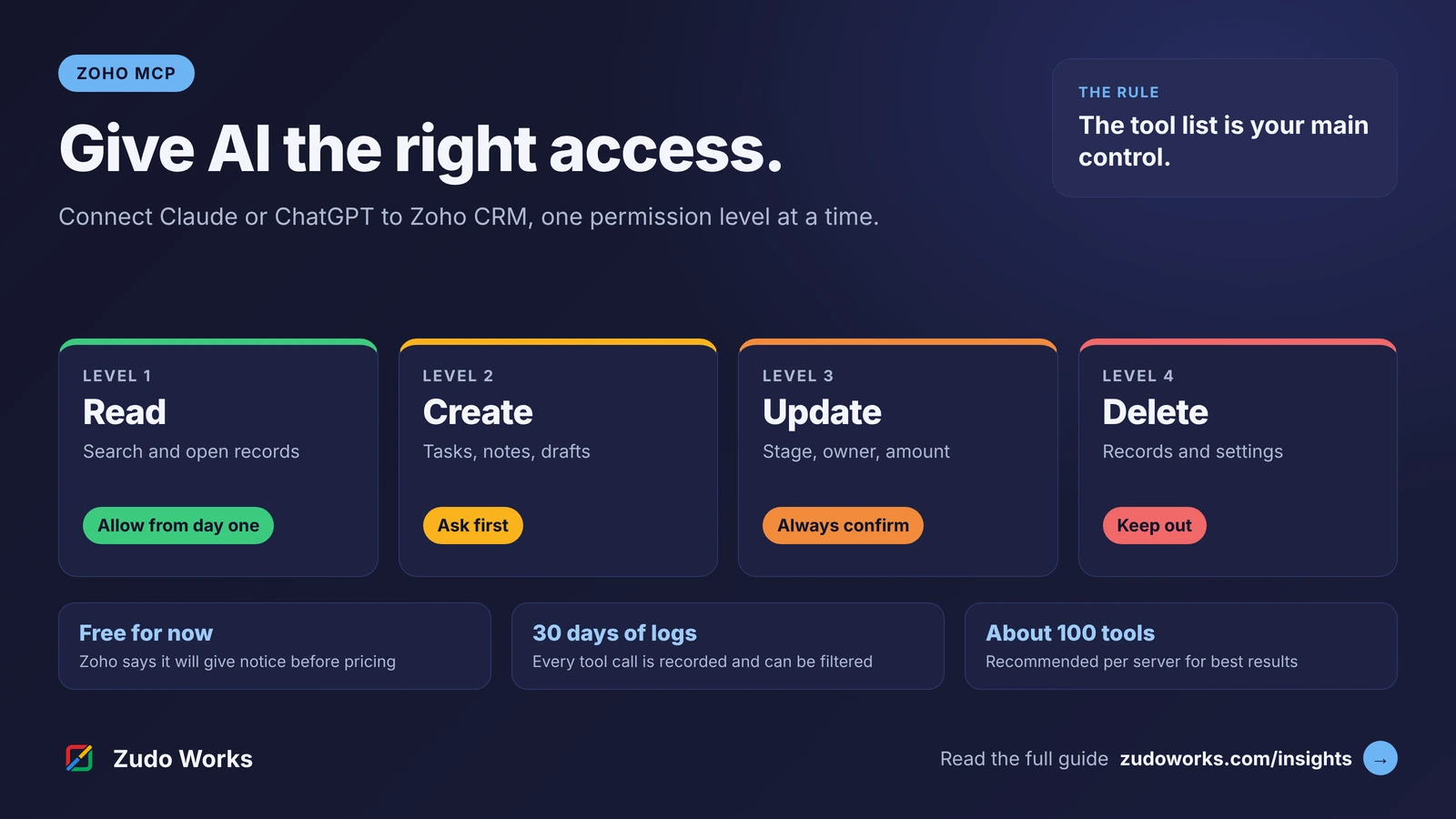
OpenAI states that ChatGPT supports both read and write tools from a custom server, and that write actions require confirmation by default. It also labels the feature as elevated risk and tells users to connect only to servers they trust. Zoho says its MCP service is free to use for now and that it will give notice before it introduces pricing. Each action uses the API allowance of the app it touches, which our guide to Zoho CRM API limits explains.
Zoho CRM also publishes four ready-made MCP servers: Data Insights, which is read-only, Data Operations, Module Customization, and Workflow and Process Automation. Zoho says actions through them are limited to what the signed-in user’s CRM role allows. Its setup guides for these cover Cursor, Claude, VS Code and Windsurf. ChatGPT is not named in those guides, so for ChatGPT we would build a server in the Zoho MCP console as above.
Our separate guide, Zoho MCP: how to connect Claude or ChatGPT safely, goes further into authorisation modes, tool lists and a four-week rollout.
Route 3: OpenAI inside Zia
If the aim is help with writing inside the CRM, nobody needs to leave Zoho. Zia, the assistant built into Zoho CRM, can run its generative features on one of two engines: Zoho’s own hosted model, or an OpenAI account that you connect.
Zoho’s help pages set out how the OpenAI option works:
- Only a CRM administrator can switch it on or off.
- The administrator connects one OpenAI account with an API key, and that account produces the responses for the whole CRM organisation. Personal accounts cannot be connected.
- It appears in email compose and reply windows, email templates, notes and description fields.
- It can compose and reply to emails, rephrase, check grammar, translate, summarise an email conversation, summarise notes and pull structured data out of a note.
- Responses are one-off. Zoho states that past prompts and responses cannot be viewed in the CRM.
- It was available in the US, EU, IN, AU, CA and JP data centres when we checked, and it is not offered to portal users.
Which editions include the feature, and which include Zoho’s hosted model, is set out in Zoho’s Zia Models FAQ and its edition comparison. If your edition offers the hosted model, weigh it first: no key, no second supplier, and the text is processed on Zoho’s own infrastructure.
The trade-off with the OpenAI option is the bill. Usage runs through your OpenAI account, and Zoho notes that the feature stops working if that account reaches its usage limit.
Route 4: Zoho Flow
Zoho Flow is Zoho’s no-code tool for joining apps together. A flow starts with a trigger in one app and runs actions in others. Zoho Flow’s page for this pair lists Zoho CRM triggers such as New lead, New contact, New note and Updated deal, and ChatGPT actions such as Summarise text, Generate email reply, Assess urgency level, Extract JSON from text and Create chat completion.
Three flows that suit this pair:
- Sort new enquiries. New lead, then assess the urgency of the enquiry text, then add a tag or raise a signal for the owner.
- Summarise long notes. New note, then summarise the text, then add the summary as a second note on the record.
- Draft, never send. Updated deal, then generate an email reply, then save it with the Draft email action so a person reads it first.
Flow suits simple, linear steps. When the logic needs branches, loops over records or careful error handling, a script is the better tool, as we explain in Zoho Flow vs Deluge.
Route 5: a Deluge function and the OpenAI API
A custom function gives the most control. You decide which fields are sent, what the prompt says, what happens to the reply and what happens when the call fails. The function calls the OpenAI API with invokeurl through a connection that holds the API key, so the key never sits in the script.
// Zoho CRM function: summarise the description of a lead
lead = zoho.crm.getRecordById("Leads", leadId);
messages = List();
messages.add({"role": "system", "content": "Summarise this sales enquiry in two sentences. Use only the text given."});
messages.add({"role": "user", "content": ifnull(lead.get("Description"), "")});
payload = Map();
payload.put("model", "MODEL_NAME");   // choose one from OpenAI's models page
payload.put("messages", messages);
response = invokeurl
[
    url: "https://api.openai.com/v1/chat/completions"
    type: POST
    parameters: payload.toString()
    headers: {"Content-Type": "application/json"}
    connection: "openai"
    detailed: true
];
if (response.get("responseCode") == 200)
{
    summary = response.get("responseText").get("choices").get(0).get("message").get("content");
    zoho.crm.updateRecord("Leads", leadId, {"AI_Summary": summary});
}
Treat this as a pattern, not finished code. openai is the name of a connection you create in Zoho CRM, and AI_Summary is a custom field. Attach the function to a workflow rule or a button. Our guides to invokeurl, Zoho CRM custom functions and try and catch in Deluge cover the time-outs, limits and error handling a production version needs.
Three rules keep this route safe. Send only the fields the task needs, never the whole record. Write the reply to its own field, so it does not overwrite what a person typed. Log each call, so someone can see what was sent and what came back.
Which route for which job
| The job | Route to start with | Why |
|---|---|---|
| A manager wants to ask about the pipeline on a Monday | 1, the plugin | Nothing to build |
| A team wants answers but must limit what the assistant can touch | 2, a Zoho MCP server | You pick each tool |
| Reps want help writing replies in the CRM | 3, Zia | It sits where they already work |
| Every new enquiry should be sorted or summarised | 4, Zoho Flow | It runs on its own, with no code |
| The prompt, fields and checks are specific to your business | 5, Deluge | Full control and error handling |
| A fixed rule that must never be skipped, such as a discount approval | None of these | Use a workflow rule or Blueprint |
A language model is the wrong tool for a step that has to happen the same way every time. Our guide to AI agents in Zoho CRM sets out which work suits AI and which should stay rule-based.
Where your CRM data goes
All five routes send customer data to OpenAI. What OpenAI may do with it depends on the kind of account at the other end.
- Personal ChatGPT accounts. OpenAI states that content from its services for individuals may be used to train its models unless the user opts out.
- Business plans and the API. OpenAI states that it does not use content from its business offerings or the API to train its models by default. For the API it says abuse-monitoring logs are kept for up to 30 days by default.
- Region. OpenAI lists data residency controls for several regions, Australia, Europe and the United Kingdom among them, but says eligibility has to be confirmed with its sales team. Do not assume the data stays in your country.
So the common shortcut, exporting a CSV file of contacts and pasting it into a personal ChatGPT account, is the weakest option of all. The file is out of date the next day, and the data may be used for training unless that person has opted out.
Zoho stores CRM data in the data centre your account belongs to, and it runs one in Australia. That location covers the CRM. It does not cover what an outside AI service does once it receives a record. If you hold personal information about customers, sending it to a provider overseas can bring your own privacy duties into play: Australian Privacy Principle 8 in Australia, information privacy principle 12 in New Zealand’s Privacy Act 2020, and the international transfer rules of the UK GDPR. This is not legal advice. Read your provider’s terms and ask your adviser before you connect customer data.
Third-party connectors also join Zoho CRM to ChatGPT. Each adds one more company that handles your CRM data, so apply the same questions to them.
What to let the assistant do
Sort actions by how hard they are to undo.
| Action | Examples | Our advice |
|---|---|---|
| Read | Search deals, open a record, list activities | Allow from the first day |
| Create, low risk | Tasks, notes, draft emails | Allow after a week of read-only use |
| Update | Deal stage, owner, amount | Only with a confirmation each time |
| Send and commit | Emails to customers, quotes, invoices | The assistant drafts; a person sends |
| Delete and configure | Deleting records, changing fields or workflows | Leave out |
The reason for the caution is prompt injection. An assistant reads whatever is in a record, including text a stranger typed into a web form. That text can contain instructions aimed at the assistant. A confirmation step before every change is the plain defence.
We hold our own product to the same rule. In Zudo AI, the assistant inside our ZMOS manufacturing software, every change is a proposal and nothing is saved until a person approves it.
Checklist before you connect
- Name the job. Write one sentence on what the connection is for. It tells you which route you need.
- Check the ChatGPT account type. A business plan or the API, not personal accounts, for customer data.
- Check the Zoho side. Your CRM edition, your data centre and who the administrator is.
- Start read-only. One server or plugin, two or three people, one week.
- Compare answers with reports. A wrong answer usually points to duplicates or empty fields in the CRM.
- Limit the fields. Leave out anything the task does not need, above all personal and financial details.
- Keep changes behind a confirmation. No “always allow” for anything that writes.
- Decide who reviews the logs. Zoho MCP keeps its logs for 30 days, so look at them weekly at first.
If the answers in week one are poor, the cause is rarely the model. It is the data. Our data foundations guide covers the clean-up that makes AI answers reliable.
Does the same work for Claude?
Mostly, yes. Routes 2, 4 and 5 are not tied to one AI company. A Zoho MCP server can be added to Claude as a custom connector, and Zoho’s own setup guide for its ready-made CRM servers covers Claude step by step: Customize, Connector, Add Custom Connector, paste the server URL and connect. A Deluge function can call another provider’s API in place of OpenAI’s. Route 3 is the exception: when we checked, Zia’s model settings in Zoho CRM offered Zoho’s hosted model and OpenAI.
What to take from this
Pick the route by the job. Start read-only with a few people, check the answers against reports, and add write access one action at a time.
If you would like the connection designed and built for you, with the permissions, fields and logging settled first, that is part of our Zoho CRM implementation and Zoho integrations work.
Watch and share
The same guide as a short video, on the channels where we post it. Share the one that suits the person you are sending it to.
- YouTube: the 46-second video
- YouTube Shorts: the vertical version
- Instagram: the Reel
- Facebook: the Reel
- LinkedIn: Zudo Works page
- LinkedIn: Arunkumar V
- Instagram: the four-slide guide
- Facebook: the four-slide guide
- LinkedIn: Zudo Works page, four slides
- LinkedIn: Arunkumar V, four slides
- Threads: the short version
- Mastodon: the short version
Frequently asked questions
Frequently asked questions
Can ChatGPT connect to Zoho CRM?
Yes. OpenAI's plugin directory lists a Zoho CRM plugin, with Zoho as the developer, that brings CRM records and activities into ChatGPT. You can also add a Zoho MCP server to ChatGPT as a custom server. Availability depends on your ChatGPT plan and workspace settings, so check inside your own account.
Is there a native ChatGPT integration in Zoho CRM?
Yes. Zia, the assistant built into Zoho CRM, can use an OpenAI account for its generative features. A CRM administrator connects the account with an API key, and it then serves the whole organisation for drafting emails, summarising notes and similar tasks. Zoho also offers its own hosted model as the other engine.
Do I need a paid ChatGPT plan to connect Zoho CRM?
It depends on the route. The plugin and custom MCP servers depend on your ChatGPT plan and workspace settings, which OpenAI changes from time to time. The Zia, Zoho Flow and Deluge routes do not use a ChatGPT subscription at all. They use an OpenAI API account, which is billed by usage.
Is it safe to connect ChatGPT to Zoho CRM?
It can be, with limits. Use a business plan or the API, not personal accounts. Start with read-only access, keep every change behind a confirmation and leave delete tools out. Remember that an assistant reads any text in a record, including text written by strangers, which is why write actions need a person to confirm them.
Can ChatGPT update records in Zoho CRM?
Yes, if you allow it. OpenAI states that ChatGPT supports write tools from a custom MCP server and asks for confirmation by default. Through Zoho MCP the assistant can only use the tools you added to the server. We advise allowing notes and tasks first, and updates to deals only with a confirmation each time.
What is the difference between Zia and ChatGPT in Zoho CRM?
Zia is Zoho's assistant inside the CRM. ChatGPT is OpenAI's chat product. Zia can run its generative features on Zoho's own hosted model or on an OpenAI account you connect, so the two overlap. Use Zia to write and summarise inside the CRM, and ChatGPT with the plugin or MCP to ask questions across records in a chat.