AI and automation
Zoho MCP: How to Connect Claude or ChatGPT to Zoho CRM Safely
Zoho MCP lets an AI assistant such as Claude or ChatGPT read and change records in your Zoho apps from a chat window. Setting it up takes minutes. Deciding what the assistant is allowed to do is the part that deserves your time.

Quick answer
Zoho MCP lets an AI assistant such as Claude or ChatGPT use tools in your Zoho apps. Create a server in the Zoho MCP console, add only the tools you need, copy the MCP URL into your assistant and authorize with your Zoho account. Start with read-only tools, keep each user on their own authorization, and require confirmation before any change.
Until recently, asking an AI assistant about your CRM meant exporting a spreadsheet and pasting it into a chat. The Model Context Protocol (MCP) removes that step. It is an open standard, introduced by Anthropic in late 2024, that lets an AI assistant call tools in other systems. Zoho now offers its own MCP service, so an assistant can search deals, create tasks or draft invoices in your Zoho account directly.
This guide covers what Zoho MCP is, how to set it up, and the decisions that keep it safe. The product is new and changing quickly, so we link to Zoho’s own documentation for anything that is likely to move. The details here were checked in October 2026.
What Zoho MCP is
Zoho MCP is a service where you create MCP servers. A server is a named set of tools, and each tool is one action in one app, such as “search records” in Zoho CRM or “create invoice” in Zoho Books. You then give the server’s address to an AI assistant, which Zoho calls the MCP client.
Three points are worth understanding before you start:
- Zoho MCP is not an AI. The intelligence comes from the assistant you connect. Zoho MCP only gives it a controlled way to act.
- The assistant can use only the tools you add. If the server has no delete tool, the assistant cannot delete anything through it.
- It covers more than CRM. Zoho lists tools for CRM, Books, Desk, Mail, Calendar, Projects, Creator and other Zoho apps, plus a growing set of third-party services.
Zoho CRM also publishes four ready-made CRM servers, for data insights, data operations, module customization, and workflow and process automation. They are a quick way to try the idea, though a server you build yourself gives you tighter control over the tool list.
What you need
| Side | Requirement | Notes |
|---|---|---|
| Zoho | A Zoho account with the apps you want to connect, and access to the Zoho MCP console | Zoho states that MCP is free to use for now and that it will give notice before introducing pricing |
| Claude | A plan that supports custom connectors: Pro, Max, Team or Enterprise | On Team and Enterprise plans, only an Owner can add the connector; members then connect individually |
| ChatGPT | Developer mode with MCP apps | Write actions are in beta on Business, Enterprise and Edu plans; Pro can connect for read and fetch only |
| Other clients | Any client that supports MCP connections | Zoho names Cursor, VS Code and Windsurf alongside Claude and ChatGPT |
Plan requirements change often. Confirm them on the Zoho MCP site and in your AI provider’s help centre before you promise this to your team.
How to set it up
- Create a server. In the Zoho MCP console, choose Create MCP Server and give it a name that says what it is for, such as
sales_readonly. You can also start from a pre-configured server. - Add tools. Open Tools, choose Add Tools, pick the app and tick only the actions you need. For a first server, search and get tools are enough.
- Check authorization. Under Connections, confirm how users will authorize. The next section explains the two options.
- Copy the MCP URL. The Connect section shows the server’s URL. Treat it like a password.
- Add it to your assistant. In Claude, add a custom connector under Customize > Connectors, paste the URL and click Connect. In ChatGPT, create an app under Settings > Apps, paste the URL and choose OAuth.
- Test with a read-only question. For example: “List open deals over 500,000 with no activity in the last 14 days.” Check the answer against a CRM report before you trust it.
Menu names change as the product develops. Zoho’s implementation guide has the current screens for each client.
The two authorization modes
This is the most important setting on the server, because it decides whose access the assistant uses.
| Authorize on Demand | Authorize via Connections | |
|---|---|---|
| Who signs in | Each user, with their own Zoho account | The Super Admin, once |
| Whose access is used | The individual user’s | The Super Admin’s tokens, shared with trusted members |
| Default for | Zoho apps | Third-party services |
| Best for | Teams, where people should see only what they normally can | A single shared integration, or third-party tools that need it |
For Zoho apps, keep Authorize on Demand unless you have a specific reason not to. A sales rep who connects the assistant should not gain a Super Admin’s reach through it. If you do need a shared connection, pair it with a server that has very few tools.
What to let the assistant do
We sort actions by how hard they are to undo, the same way we do for any automation.
| Action type | Examples | Our recommendation |
|---|---|---|
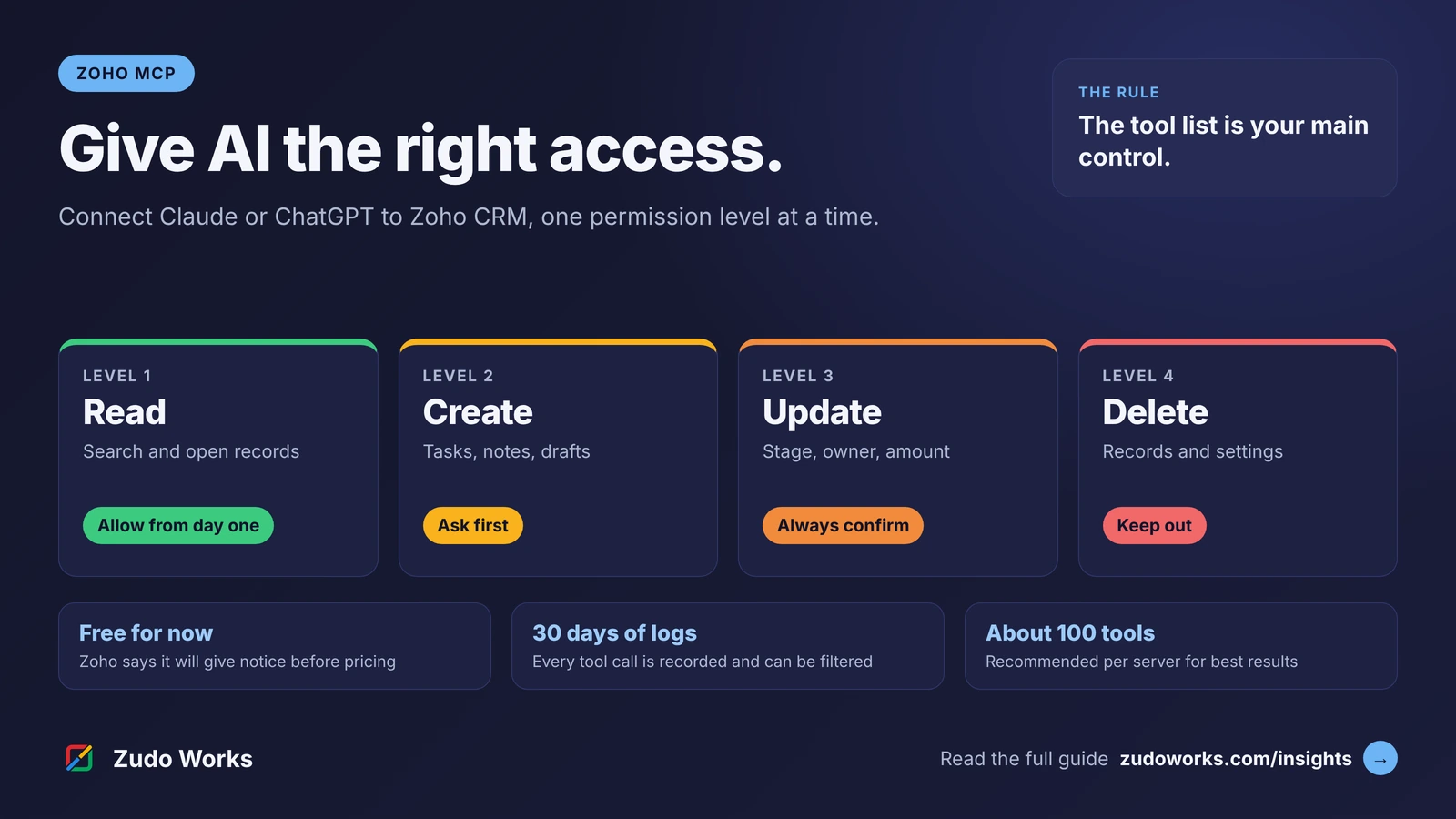
| Read | Search records, get a record, get related records | Allow from day one |
| Create, low risk | Tasks, notes, call logs, draft emails | Allow after a week of read-only use, with the assistant asking before each action |
| Update | Deal stage, owner, amount, contact details | Allow selectively, always with a confirmation step |
| Money and commitments | Invoices, quotes, payments, emails sent to customers | Let the assistant draft; a person approves and sends |
| Delete and configuration | Deleting records, changing fields, layouts or workflows | Leave out of the server |
Two habits make this easier to manage. Build separate servers for separate jobs, for example one read-only server for reporting and another for sales follow-up. And keep each server small. Zoho recommends around 100 tools per server for best results, because an assistant choosing among too many tools is more likely to pick the wrong one.
The risks to plan for
- Hidden instructions in your data. An assistant reads whatever is in a record, including text a stranger typed into a web form or an email. That text can contain instructions aimed at the assistant. This is called prompt injection, and it is the main reason to keep write and send actions behind a human confirmation.
- The wrong record. “Update the Atlas deal” is ambiguous when there are three. Ask the assistant to show the record it found before it changes anything.
- A leaked URL. The MCP URL gives access to everything on that server. Do not paste it into chats or documents. If it leaks, regenerate the key in the Connect section.
- “Always allow”. Assistants ask before using a tool and offer to stop asking. Use that option only for read tools.
- Data leaving Zoho. Whatever the assistant reads is sent to the AI provider to produce the answer. Check your provider’s data-use terms and your own privacy obligations before you connect customer or financial data.
Zoho MCP keeps a log of every tool call, which you can filter by tool and by success or failure. Logs are kept for 30 days, so review them weekly while the setup is new.
MCP, workflows or Deluge: which to use
MCP does not replace the automation you already have. It suits a different kind of work.
| Use | When | Example |
|---|---|---|
| Workflow rules and Blueprint | The same thing must happen every time | Require approval for discounts above a set level |
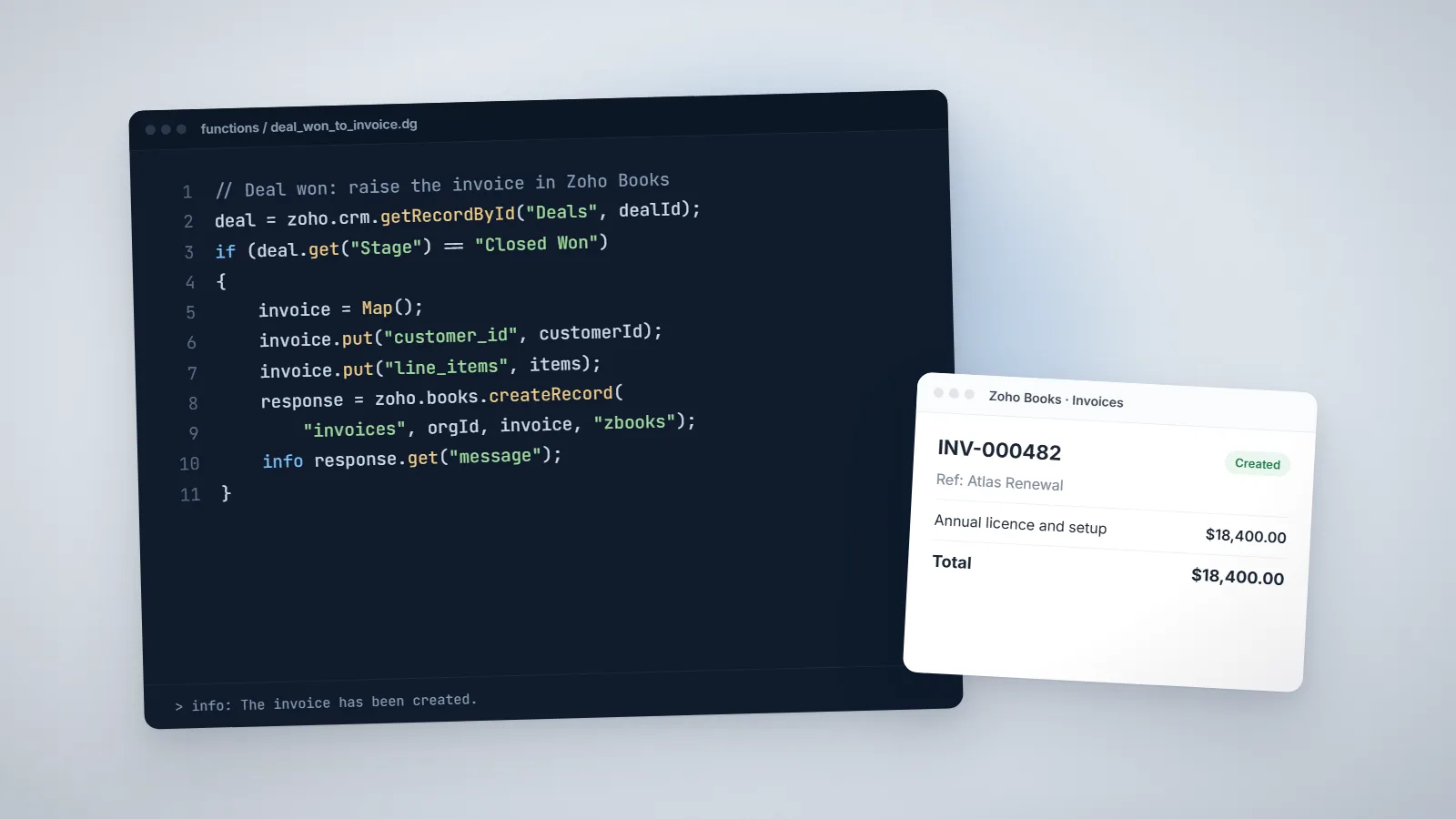
| Deluge functions | The logic is fixed but too complex for a rule | Create a Zoho Books invoice when a deal is won |
| An assistant through MCP | The request is different each time and a person is present | “Which customers have open tickets and an overdue invoice?” |
If a task runs on a schedule or must never be skipped, build it as a rule or a function. Our Deluge script examples show the pattern. If it is a question someone asks on a Monday morning, MCP is a good fit. For a wider view of where AI helps in a CRM, see our guide to AI agents in Zoho CRM.
A four-week rollout plan
- Week 1: read-only, two or three people. One server with search and get tools. Collect the questions people actually ask.
- Week 2: check accuracy. Compare the assistant’s answers with CRM reports. Wrong answers usually point to data problems such as duplicates or empty fields, which are worth fixing anyway.
- Week 3: add low-risk create tools. Tasks, notes and drafts, with a confirmation each time.
- Week 4: review logs and decide. Keep what was used, remove what was not, and write a one-page rule on what the assistant may and may not do.
Clean data makes the biggest difference to the result. If your records are inconsistent, start with the data, as described in our data foundations guide.
Cost and limits
At the time of writing, Zoho says MCP is free to use and that calls made through it count against each app’s normal API limits. There is no stated limit on the number of servers. The real costs are the AI subscription for each user and the time spent on setup, permissions and review.
If you want help deciding which tools to expose, or need the underlying automation and integrations tidied up first, that is the kind of work we do.
Frequently asked questions
At the time of writing, Zoho states that Zoho MCP is free to use and that it will notify users in advance if pricing is introduced. Calls made through MCP follow each Zoho app's normal API limits. You still pay for your Zoho apps and for the AI assistant you connect.
Any client that supports MCP connections. Zoho names Claude, ChatGPT, Cursor, VS Code and Windsurf. Each has its own plan requirements for custom connectors, so check your provider's help centre.
With Authorize on Demand, each user signs in with their own Zoho account, so the assistant works within that user's access. With Authorize via Connections, the Super Admin's authorization is shared, so use it carefully and with a small set of tools.
It can be, with limits. Add only the tools you need, keep delete and configuration tools out of the server, require confirmation before any change, and review the MCP logs regularly. Start with read-only access.
No. Creating a server and connecting an assistant is done through menus. Where help is useful is in deciding which tools to expose, cleaning the data the assistant will read, and building rule-based automation for tasks that must happen the same way every time.
Zia is Zoho's own AI, built into Zoho apps. Zoho MCP is a connection layer that lets an outside assistant, such as Claude or ChatGPT, use tools in your Zoho apps. Many teams will use both.
Related services: Business process automation · Zoho integrations · Zoho CRM implementation · Zoho development