
Most business apps end up needing people from outside the company. A distributor wants to place orders and see their status. A supplier needs to confirm delivery dates. A customer wants to raise a service request and follow it. In Zoho Creator, those people do not get an internal user licence. They sign in through a portal, and the portal is charged in a different way from the rest of the product.
That difference is where the questions start: how many portal users are free, what the add-on covers, who counts, and what else has to be bought before a portal looks like your own site. Every plan detail and limit below was checked on Zoho’s pricing, plan comparison and help pages on 22 November 2026. We do not quote prices, because they vary by currency and change; see the official Zoho Creator pricing page. We build on Zoho, so read this with that in mind. For the plans as a whole, see our Zoho Creator pricing guide.
The short answer
- Portals need a paid plan. Zoho’s help states that portals can be created only in the paid plans of Creator.
- A few portal users are free. The plan comparison lists up to three portal users free on paid plans. That is enough to test a portal, not to run one.
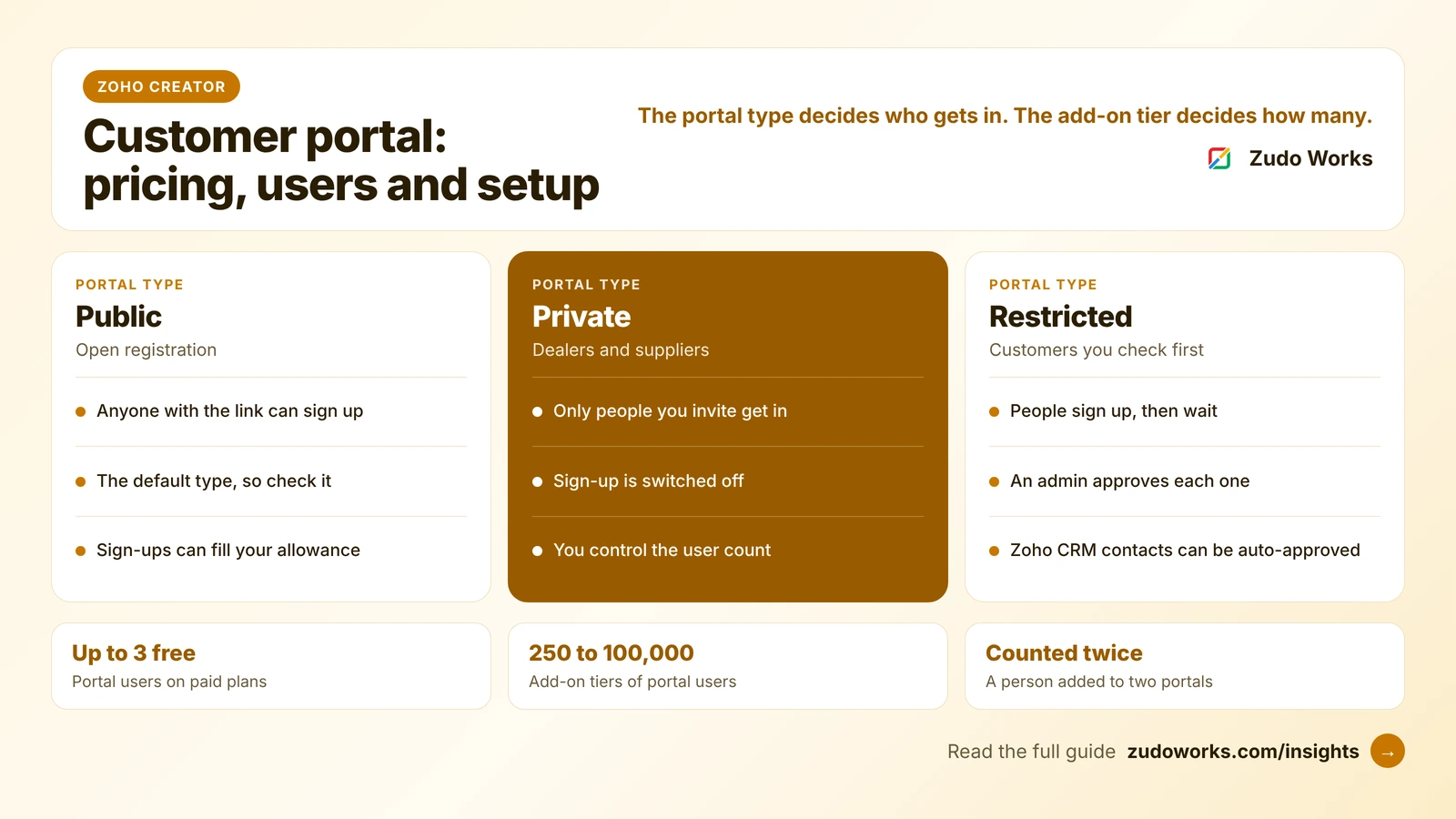
- More are bought in blocks. The customer portal add-on is sold per month in tiers from 250 to 100,000 portal users. You buy the tier that covers your count, not one licence per person.
- The limit is shared. One allowance covers every portal in the account, and a person added to two portals counts twice.
- Branding and single sign-on can cost extra. A custom domain and SAML single sign-on are add-ons on Standard and Professional, and included in Enterprise.
What a Creator portal is, and who can use it
Zoho describes a portal as a way for an organisation to let external users log in to its internal system and see restricted data. The pricing page says the add-on is for “your customers, vendors, and other business partners”. Portal users sign up with the portal itself. They do not need a Zoho account, and they see only the forms, reports and pages you allow.
The word external matters, and Zoho enforces it in two ways.
- When you create a portal you accept a statement of use, which says only external users, such as vendors, can be added as portal users.
- A portal user’s email address cannot be on the same domain as the super admin’s or an internal user’s email address.
So a portal is not a cheaper way to license your own staff. An employee who only approves one request a week still needs a user licence. If that is your situation, the section on users in our pricing guide sets out the options.
How portal pricing works
There are three parts to the cost of a portal: the Creator plan, the portal user add-on, and any extras the portal needs.
1. The plan
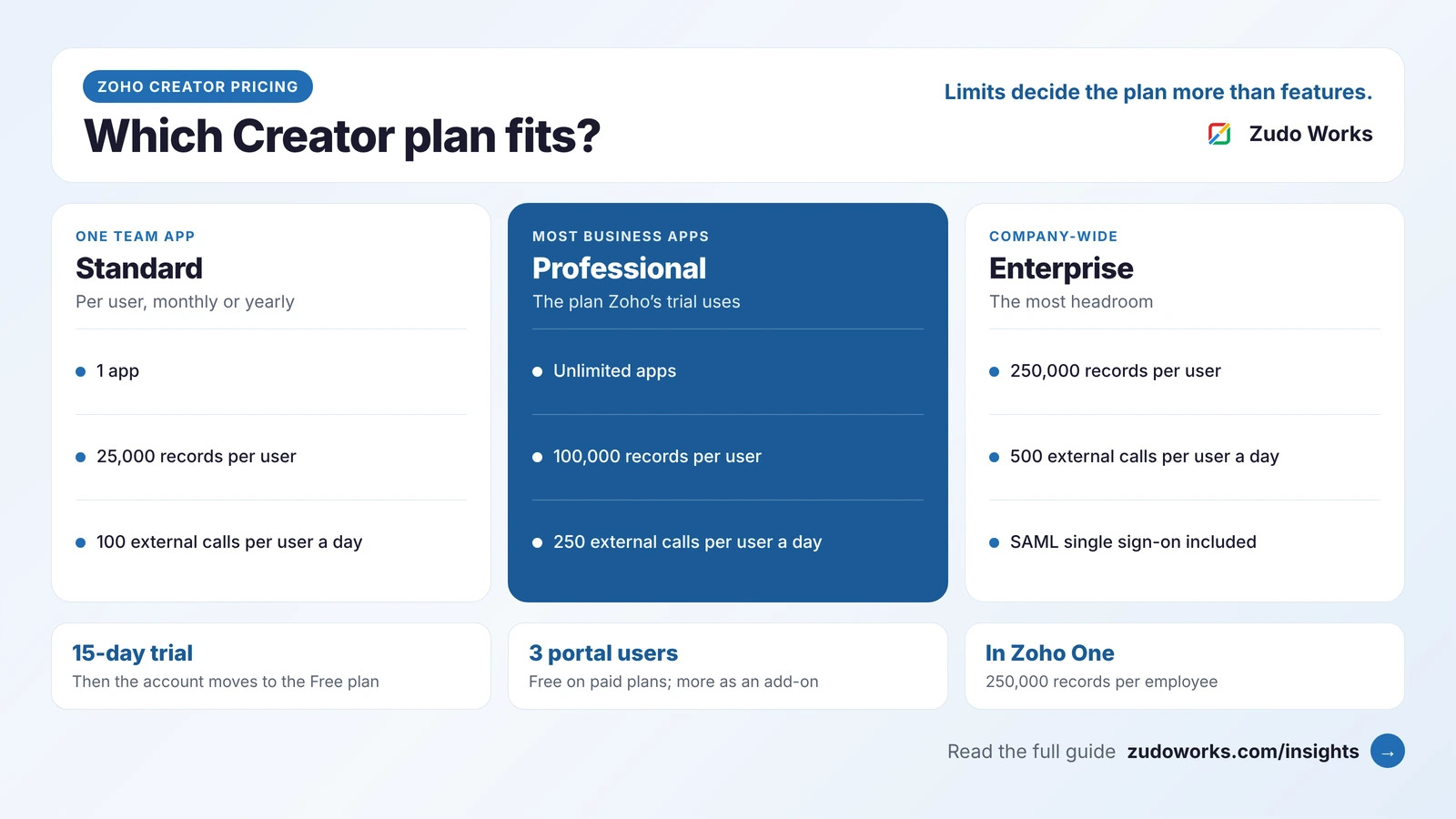
You need Standard, Professional or Enterprise, licensed per internal user and billed monthly or yearly. The people who build and run the app are internal users. The plan also sets how many portal permission sets each app can have and which portal features are included, as the table below shows.
2. The portal user add-on
The pricing page lists the customer portal add-on in nine tiers: 250, 500, 1,000, 2,000, 5,000, 10,000, 25,000, 50,000 and 100,000 portal users, each priced per month. Above 100,000 the plan comparison page offers a quote. Zoho’s help adds that the add-on can go up to 500,000 portal users, and that larger numbers are arranged through Creator support.
Two points follow from the tier structure. The step from the free allowance to the first tier is large: the fourth portal user moves you to the 250 tier. And each tier is a ceiling, so 260 dealers need the 500 tier.
3. The extras
A portal on Zoho’s default domain, with email and password sign-in, needs nothing more. A portal on your own web address, single sign-on through your identity provider, or an app in the app stores under your own name can each be a further add-on, depending on the plan.
What each plan includes for portals
| Portal feature | Standard, Professional | Enterprise |
|---|---|---|
| Portals | Yes | Yes |
| Portal users included | Up to 3 | Up to 3 |
| More portal users | Add-on tiers | Add-on tiers |
| Portal permission sets | 10 or 50 per app | 250 per app |
| Custom domain | Add-on | Included |
| SAML single sign-on | Add-on | Included |
| Rebranded mobile apps | Add-on | Included |
| Multi-factor authentication | Yes | Yes |
| Accept payments from portal users | Yes | Yes |
Source: Zoho’s Creator plan comparison, read on 22 November 2026. The Free plan has no portals. The Flex plan is quoted by Zoho, so ask what it includes. Zoho changes this table from time to time, so check it on the day you buy.
Standard allows 10 portal permission sets per app and Professional allows 50. Remember too that Standard allows one application. A portal is set up inside an app, so a business that wants a dealer portal on one app and a supplier portal on another needs Professional or above.
How portal users are counted
This is the part that decides the tier, and the rules are spread across several help pages. Here they are in one place.
| Question | What Zoho’s help says |
|---|---|
| Is the limit per portal or per account? | Per account. The limit applies to all your portals combined and depends on the add-on you chose. |
| Do portal users use up internal licences? | No. They are not counted as internal users. |
| What if one person is in two portals? | Both additions are counted individually. |
| Is it one count per company or per person? | Per person. Each portal user is an individual with their own sign-in. |
| Where can I see the count? | On the Billing page, which shows the current count and the total you have bought. Its usage figure is the number of approved portal users. |
| Who can see Billing? | Only the super admin and admins. |
Three practical consequences are worth planning for.
- Count logins, not customers. If each of your 180 dealers wants a login for the owner and one for the order clerk, you need 360 portal users, which is the 500 tier, not the 250 tier.
- One portal is cheaper than two for the same people. A contractor who is both a customer and a supplier counts twice if you put them in two portals. One portal with two permission sets counts them once.
- Public sign-up can fill the allowance. A Public portal lets anyone with the link register. Use Restricted or Private if the number of users must stay under a tier.
The help pages do not say what a new user sees when the allowance is full, or whether invited people who have not yet accepted count toward it. Test both in your own account before a launch, and delete users who have left.
One more limit sits outside the portal add-on. Records and file storage are allowances per internal user: 25,000 records per user on Standard, 100,000 on Professional and 250,000 on Enterprise. Portal users are not counted as internal users, so a portal with 2,000 customers adding orders draws on an allowance set by the size of your internal team. Work out the records a year the portal will create before choosing the plan.
The three portal types
Every portal has a type, which you can change later in its settings.
| Type | Who can get in | Good for |
|---|---|---|
| Public | Anyone with the link can sign up and use the portal. This is the default. | Open registration, such as event bookings or public applications |
| Private | Only people an admin invites. Sign-up is switched off. | Dealers, suppliers and contractors you already know |
| Restricted | People sign up, then wait for an admin to approve them. | Customers you want to check before they see data |
A Restricted portal has one useful option: it can approve a sign-up automatically when the person is already a contact in your Zoho CRM. That needs a Zoho CRM connection in the Creator account. If your customer list lives in CRM, read our Zoho Creator vs Zoho CRM guide for how the two fit together.
Because Public is the default, check the type before you share a link. A portal that shows prices or order history should almost never be Public.
How to set up a portal
Only the super admin and admins can create and manage portals. The steps below follow Zoho’s setup guide for the current version of Creator. Menu names differ slightly in older accounts.
- Confirm the account’s primary email address. Creator asks for this before it lets you configure a portal.
- Open the portal section of the app and accept the statement of use. This is where you agree that portal users are external.
- Choose the web address. Pick the default domain and enter a subdomain, or enter your own domain. A custom domain has to be verified with DNS records, and the portal is not reachable until verification is complete. Trial accounts must upgrade before using a custom domain.
- Choose the portal type. Public, Private or Restricted, with the email notifications you want for sign-ups and approvals.
- Set the default permission. New users get this permission set when they sign up, and it is offered first when you add users by hand.
- Build the permission sets. Decide what each kind of user can open, and which records and fields they can see. The next section covers this.
- Add the users. Add them one at a time with an email address and a permission, or import a file. An import takes up to 500 portal users at once, from an XLS, XLSX, CSV or TSV file with a header row and the name and email address in the first two columns.
- Brand the pages. Set the title, logo and favicon, and edit the login, sign-up and password reset pages and the emails the portal sends.
Invited users are confirmed once they accept the invitation and set a password. In the user list each person shows as Approved, Pending or Unconfirmed, and you can filter, export, change permissions in bulk, or delete from there.
Permissions: who sees which records
This is the step that protects your data, so give it more time than the branding. Every app starts with a portal permission set named Customer. Zoho’s help says it gives access to forms, to pages, and to the data added by all users in the reports. For most business portals that is too open. A dealer should not see another dealer’s orders.
Custom permission sets fix that. For each form, report and page you can set:
- Access, to allow or block the form or page.
- View, Edit and Delete, which apply to the records the customer added themselves.
- View all and Modify all, which open every record in the report. Leave these off unless the data is meant to be shared.
- Import and Export or Print, per report.
- Field permissions, to hide a field or make it read only. Fields marked as personal data or health information can be hidden from a permission set in one setting.
“Records the customer added” covers a customer who submits their own requests. It does not cover records your staff create for a customer, such as an order entered by your sales team. Showing those to the right person takes extra work in the app, usually a report filtered on the signed-in user’s email address or a link between the portal user and their company record. This is a common piece of Zoho Creator development, and it is worth testing with two real customer accounts side by side before launch. Our Deluge script examples show the kind of scripting involved.
Zoho also notes that portal customers cannot trigger API calls. If a customer’s own system needs to send you data, that is an integration built on the internal side, covered in our guide to API calls from Deluge.
Sign-in, security and your own web address
By default a portal user signs in with an email address and a password of at least eight characters. Zoho’s portal account guide also lists passkeys, which work on Android, iOS, iPad, macOS and Windows.
- Multi-factor authentication. An admin can enforce it for a portal, or users can switch it on for themselves. It uses authenticator apps; Zoho names Authy, Microsoft Authenticator, Google Authenticator and Zoho OneAuth. The help page does not list text message codes.
- SAML single sign-on. Portal users sign in through your identity provider. It is included in Enterprise and an add-on on Standard and Professional. It supports only the email address format for the user identifier, and Creator’s own multi-factor authentication cannot be enabled on a portal that uses SAML.
- Custom domain. The portal runs on your own web address in place of Zoho’s. Included in Enterprise, an add-on below it.
- Session timeout. You can set how long an idle session stays signed in.
- Mobile. Creator can package an app as a separate iOS and Android app for external distribution, called a rebranded mobile app. It needs the developer certificates for each store.
How to size the add-on before you buy
Run through this list with real numbers. It takes an hour and often changes the tier.
- List every type of external user: customers, dealers, suppliers, contractors, agents.
- Count individual logins for each type, not companies.
- Decide whether one portal with several permission sets can serve them all, so nobody is counted twice.
- Add the growth you expect in the next twelve months, then pick the tier above that figure.
- Check that the plan allows enough permission sets per app: 10, 50 or 250.
- Decide whether you need your own domain or single sign-on, and price them as add-ons or move to Enterprise.
- Estimate the records the portal will create each year against the plan’s record allowance.
- Choose Private or Restricted unless open sign-up is the purpose.
- Start with the three free portal users to prove the permissions before buying a tier.
A worked example with invented figures. A parts distributor has 12 internal staff and 180 dealers, and wants two logins per dealer, plus 40 suppliers who confirm purchase orders. That is 360 dealer logins and 40 supplier logins, 400 portal users in all. One portal with a dealer permission set and a supplier permission set keeps the count at 400, inside the 500 tier, with room for 100 more. Two separate apps would need Professional, and any person in both portals would count twice.
When a portal is the wrong tool
A portal is not always the answer, and it is fair to say so.
- One-off submissions. If outside people only need to send you a form and never look anything up, a public form needs no sign-in and no portal user.
- Your own staff. Employees are internal users. The portal terms and the email domain rule both rule them out.
- A handful of trusted outsiders. For three or four external people, the free allowance may be all you need.
- Very large public audiences. Tens of thousands of occasional users can make a per-tier add-on expensive next to a custom-built site. Our custom software page explains when we recommend building outside Zoho.
- Another platform. Other low-code products charge for external users in different ways. Our comparisons of Creator vs Power Apps, Creator vs Quickbase and Creator vs Knack cover how each one handles them.
Other Zoho products, such as Zoho CRM, have their own portals with their own licensing. This guide covers Creator only.
What to take from this
A Zoho Creator portal is charged in blocks of portal users on top of a paid plan, with up to three free. The allowance is shared across every portal in the account, people are counted individually, and anyone in two portals counts twice. Standard and Professional charge extra for a custom domain and single sign-on; Enterprise includes them. Count logins, design the permission sets before you invite anyone, and keep the portal Private or Restricted unless open sign-up is what you want. If you would like a second opinion on the sizing or the permission design, tell us what you are building or see how we price projects.
Frequently asked questions
Frequently asked questions
How much does a Zoho Creator customer portal cost?
A portal needs a paid Creator plan, which includes up to three portal users. More are bought as a monthly add-on in tiers from 250 to 100,000 portal users. A custom domain and SAML single sign-on are further add-ons on Standard and Professional. Zoho publishes current prices on its Creator pricing page.
How many portal users are free in Zoho Creator?
Zoho’s plan comparison lists up to three portal users free on paid plans. The Free plan has no portals. Three users are enough to build and test a portal. A live portal for customers or dealers normally needs the add-on, which starts at a tier of 250 portal users.
Are Zoho Creator portal users counted as users?
No. Zoho’s help states that portal users are not counted as internal users. They are external people with their own sign-in, and they come out of the portal user allowance instead. Internal staff cannot be portal users, because a portal user’s email address cannot share a domain with the account’s internal users.
Is the portal user limit per portal or per account?
Per account. Zoho’s help says the limit applies to all your portals combined and depends on the add-on you bought. A person added to two portals in the same account is counted twice, so one portal with several permission sets uses fewer portal users than two portals for the same people.
Can a Zoho Creator portal use my own domain?
Yes. A portal can run on Zoho’s default domain with a subdomain you choose, or on your own domain once it is verified with DNS records. The plan comparison lists the custom domain as an add-on on Standard and Professional and as included in Enterprise. Trial accounts must upgrade first.
What is the difference between public, private and restricted portals?
A Public portal lets anyone with the link sign up, and it is the default. A Private portal admits only people an admin invites, with sign-up switched off. A Restricted portal lets people sign up but holds each one until an admin approves them, with optional automatic approval for Zoho CRM contacts.