
Airtable stores data in bases made of linked tables. Zoho Creator stores it in forms, shows it in reports and runs logic in Deluge, Zoho’s scripting language. The data model is close enough that most bases move without redesign, but the two products export and import in different ways, and a few things do not travel in a file at all.
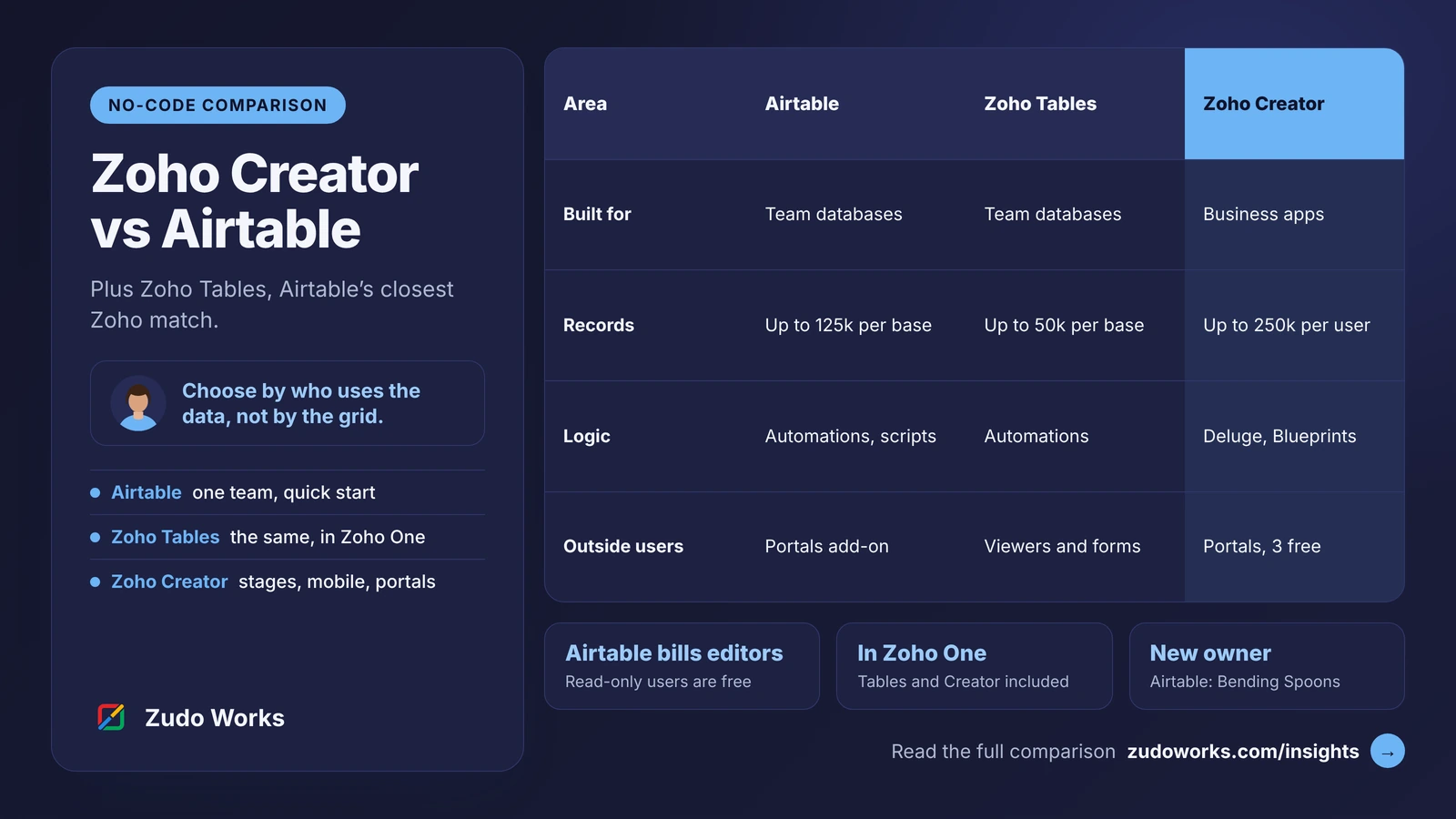
Every limit and feature below was checked on Airtable’s and Zoho’s own help and developer pages on 11 November 2026. We do not quote prices; see the official Airtable pricing and Zoho Creator pricing pages. We build on Zoho, so read this with that in mind. If you have not yet decided to move, start with our Zoho Creator vs Airtable comparison, which also covers Zoho Tables.
The short answer
- Records move as CSV files. Airtable downloads one CSV per table from a grid view. Zoho Creator turns a spreadsheet into an app, or imports a file into a form you have already built.
- Links between tables are rebuilt as lookup fields. Import the tables that others point to first, then the tables that link to them.
- Attachments need their own step. A CSV carries only a file name and a link that expires after a few hours, and Creator’s file import does not fill file upload fields. Files go in through the Creator API, one per call.
- Formulas, rollups and automations are rebuilt, not imported. They arrive as plain values, or not at all.
What moves, and what has to be rebuilt
| In Airtable | In Zoho Creator | How it gets there |
|---|---|---|
| Tables | Forms, each with a report | Created from your files, or built by hand |
| Records | Records | CSV or spreadsheet import |
| Linked record fields | Lookup fields | Imported by value or by record ID, after the parent table |
| Attachments | File upload and image fields | Downloaded, then uploaded through the Creator API |
| Formula, rollup, lookup and count fields | Formula fields and Deluge | Rebuilt; the CSV holds only the values at the time of export |
| Views | Reports | Rebuilt |
| Interfaces | Pages and reports | Rebuilt |
| Automations and scripts | Workflows and Deluge | Rebuilt |
| Record comments and field descriptions | No direct equivalent | Not in the CSV; copy what you need by hand |
Airtable’s help article on views lists what a CSV download leaves out: record-level comments, field descriptions, base guide content and data stored only in extensions.
Step 1: Audit the base before you export
List every table with its record count, every field with its type, and every automation with what triggers it. Then decide what not to move. Old test tables, abandoned views and fields nobody fills in are cheaper to leave behind than to migrate.
Check the record count against the plan you will buy. The two products count differently. Airtable sets a limit per base: 1,000 records on Free, 50,000 on Team and 125,000 on Business. Zoho Creator sets one for the whole account: 5,000 records on Free, then 25,000 per user on Standard, 100,000 per user on Professional and 250,000 per user on Enterprise. Our Zoho Creator pricing guide explains how to size a plan from those figures.
Do the same for files. Airtable allows 1 GB of attachments per base on Free, 20 GB on Team and 100 GB on Business. Creator allows 250 MB on Free, then 1 GB per user on Standard, 3 GB on Professional and 5 GB on Enterprise. A base with years of photos or PDFs can decide the Creator plan on its own.
Step 2: Map every field type
Write the mapping down before you import anything. Creator guesses a field type for each column, and you can change it during the import, but a decision made in advance is quicker than fixing 40 columns one at a time.
| Airtable field | Zoho Creator field | Note |
|---|---|---|
| Single line text | Single line | Name, Email, Phone and Address have their own Creator fields |
| Long text | Multi line or Rich text | Use Rich text if formatting matters |
| Number, Currency, Percent | Number, Decimal, Currency, Percent | Strip currency symbols from the file first |
| Single select | Drop down or Radio | Options are created from the values in the file |
| Multiple select | Multi select or Checkbox | Not offered when the file is over 100 MB |
| Checkbox | Decision box | Only columns holding “true” and “false” map to it automatically |
| Date & Time | Date or Date-time | Set the date format in the import settings |
| Email, URL, Phone number | Email, URL, Phone | Phone numbers need a country code |
| Linked record | Lookup | Import the parent table first |
| Attachment | File upload or Image | Not filled by file import; see Step 6 |
| User | Users | The people must exist as Creator users |
| Autonumber | Auto number | Keep the old number in a text field if other systems refer to it |
| Formula, Rollup, Lookup, Count | Formula field or Deluge | Rebuild the calculation; do not import the column as data |
| Rating, Duration | Number | Store the figure; show it how you like in the report |
| Button | Custom action in a report | Rebuilt in Deluge |
| Created time, Last modified time, Created by | Date-time and text fields | Export them as ordinary columns if you need the history |
Step 3: Export from Airtable
Airtable cannot export a whole base as one file. Each table is downloaded as its own CSV, from a grid view, in the web or desktop app.
- Create a grid view for the export in each table. Remove every filter and unhide every field: the download contains the field values visible in the view, and only a view with no filters holds every record.
- Open the menu beside the view name and choose Download CSV.
- Repeat for each table, and name the files after the tables.
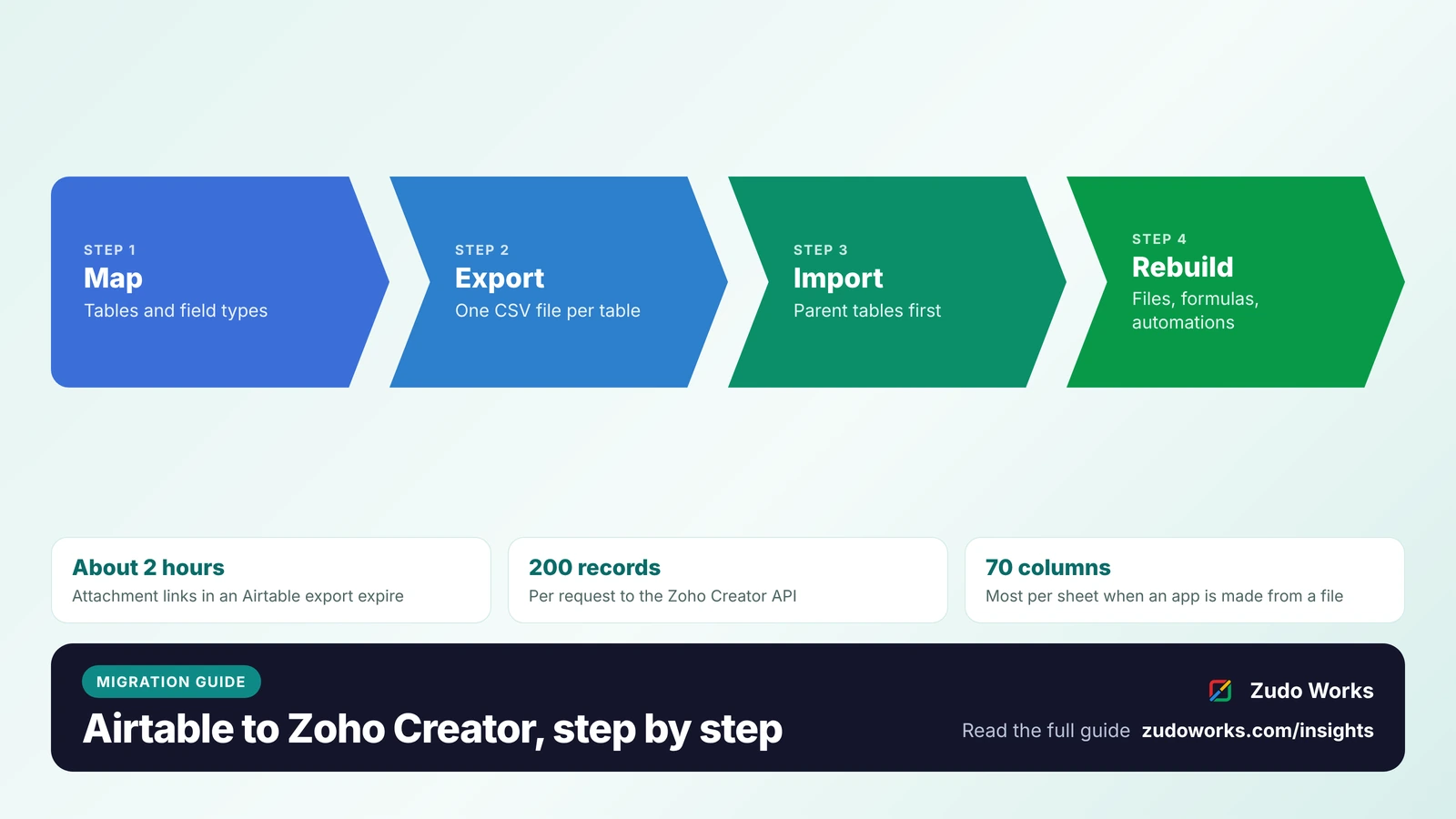
Two things in those files need care. An attachment cell contains the file name and a link, and Airtable states that links in exports expire after a few hours. A linked record cell contains what the grid shows, the names of the linked records, so those names must match the parent table exactly when you import.
For a large base, or one you want to move in a repeatable way, use the Airtable API instead. It returns up to 100 records per page, allows 5 requests per second per base, and makes you wait 30 seconds after a 429 response. Linked record fields come back as record IDs, which are safer to match on than names.
Step 4: Build the Creator app from your files
Zoho Creator can create an application directly from a file. It accepts .xls, .xlsx, .xlsm, .csv, .tsv and .ods spreadsheets and .accdb and .mdb databases, from your computer, a public link, Google Drive, Box, OneDrive, Dropbox or Zoho Docs. Each sheet becomes a form, each column a field and each row a record.
That gives you a useful shortcut: put your CSV files into one workbook, one sheet per Airtable table, and import the workbook. Creator detects relationships between the sheets and lets you manage them as lookup and subform fields on its Design tab before the app is created.
Limits to know before you try it:
- A sheet can have at most 70 columns, and a cell at most 65,536 characters.
- Spreadsheets used to create an app can be up to 100 MB for accounts in Zoho’s US data centre and 10 MB in other data centres. Businesses in the UK, Europe or Australia should check which data centre their account is in.
- A sheet needs at least two rows of data to be detected.
If the base is too large for that route, build the forms first and import each table into its own form. That import accepts CSV files up to 2 GB and other file types up to 100 MB, and also reads .json and .numbers files. CSV files over 100 MB must be uploaded from your computer.
Step 5: Import in the right order
Order matters because a lookup field can only point to a record that already exists.
- Parents first. Import the tables that other tables link to: customers, products, projects.
- Then children. Import orders, tasks or line items. Creator imports a lookup by ID or by value, and warns you when the parent values are not unique. If a value is missing from the parent form, the row can fail.
- Choose what happens on an error. You can skip the row or leave the field empty. For imports under 3,000 records there is a third option, to import nothing if any row fails.
- Leave workflows off. Creator does not run form workflows during an import unless you enable them, and then only for the first 3,000 records. For a migration you normally want them off, so old records do not send emails.
Three more rules from Zoho’s import documentation shape the plan. Importing data into a subform is not supported, so line items should go in as their own form linked by a lookup. Updating existing records needs a field with unique values to match on, and blank cells in the file overwrite existing values. And if the first 3,000 records all fail, the rest of the import stops, which usually means a date format or a required field is wrong; fix it and run again. The import status stays available for 24 hours.
Step 6: Move the attachments
This is the step most plans miss. Zoho lists file upload, image, audio, video and signature among the field types a file import cannot fill, and Airtable’s attachment links stop working about 2 hours after they are generated. So attachments move in two stages.
- Download every file while the links are live. Use the links in a fresh CSV export, or request the records through the Airtable API and download each file straight away. Save each file under the record it belongs to.
- Upload each file to its Creator record. Zoho Creator’s Upload File API adds a file to a file upload, image, audio, video or signature field. It takes one file per call, up to 50 MB for file upload fields and 10 MB for image fields, and every file counts toward the account’s storage.
Plan the pace. Creator limits API requests to 50 a minute per endpoint from one IP address, and each plan has a daily Developer API allowance: 250 per user on Standard, 500 on Professional and 1,000 on Enterprise. A base with 20,000 files will take days, not an afternoon, on a small account. Our guide to calling external APIs from Deluge covers the request handling involved.
Step 7: Rebuild formulas, rollups and automations
A CSV holds the result of a formula, not the formula. Import those columns as data and they will never change again, so leave them out and rebuild them.
- Formulas become Creator formula fields.
- Rollups and counts become formula fields or short Deluge scripts that total the related records when one is added or changed.
- Lookups are usually not needed: a Creator lookup field can display up to four fields from the related form.
- Automations and scripts become form workflows, schedules and Deluge functions. Rewrite them from what they are meant to achieve, not line by line. Our Deluge script examples show the common patterns.
This is also the moment to add what Airtable could not do for you: enforced stages with Blueprint, a customer or supplier portal, or forms that work offline on a phone. If part of the base is really sales tracking, read our Zoho Creator vs Zoho CRM guide before rebuilding it in Creator.
Step 8: Test, run both, then cut over
Do a trial import into a test copy of the app first. Then check it the dull way:
- Record counts match, table by table.
- Twenty records picked at random match field by field, including dates and decimals.
- Every lookup opens the right parent record.
- Attachments open, and the file count matches.
- Each rebuilt formula gives the same answer as the Airtable column it replaces.
If people must keep working during the move, you can keep the two in step for a short period. Zoho Flow lists Airtable triggers for a record being created, or created or updated, and Zoho Creator actions to create or update a record, so new Airtable entries can be copied across while you finish. Our Zoho Flow vs Deluge comparison explains when Flow is enough.
On the cutover day, stop edits in Airtable, run the final import of records changed since the trial, repeat the checks, and switch people over. Keep the Airtable base, read-only, until a full month end has passed without anyone needing it.
Common problems and how to avoid them
| Problem | Cause | What to do |
|---|---|---|
| Lookup rows fail on import | The linked name is not in the parent form, or appears twice | Import parents first; make the matching field unique, or match on record ID |
| Attachment links return an error | The export is more than a few hours old | Export again and download the files immediately |
| Dates import as text | The file’s date format does not match the import setting | Set the date format before importing; use one format per file |
| Phone numbers are rejected | No country code | Add the code in the file, or use Creator’s standardise option |
| The import stops early | The first 3,000 records all failed | Read the failure reason, fix the file, run again |
| Totals stop updating | A rollup was imported as a number | Rebuild it as a formula field or Deluge |
| The file is refused | Over 70 columns, or over the size limit for your data centre | Split the table, or import into a form built by hand |
Migration checklist
- Tables, record counts, fields and automations listed.
- Creator plan sized for records and file storage.
- Field type map written down.
- One unfiltered grid view per table, every field visible.
- CSV files downloaded and named after their tables.
- Parent tables imported before the tables that link to them.
- Attachments downloaded within hours of the export, then uploaded through the API.
- Formulas, rollups and automations rebuilt and compared with the originals.
- Counts and samples checked, then the final import and cutover.
If you would like this done for you, our Zoho Creator development page explains how we scope a migration, and our guide to choosing a Zoho Creator developer lists the questions to ask anyone you hire.
Frequently asked questions
Frequently asked questions
Can Zoho Creator import an Airtable base directly?
Not as a single step. Zoho Creator's import accepts spreadsheet and database files from your computer, a public link or cloud drives such as Google Drive and Dropbox. Airtable downloads one CSV file per table, so you export each table and import the files, or move the data through both products' APIs.
Do Airtable attachments transfer to Zoho Creator?
Not through a file import. An Airtable CSV holds only the file name and a link that expires after a few hours, and Creator cannot import data into file upload or image fields. Download the files while the links work, then add them with Creator's Upload File API, one file per call, up to 50 MB for a file upload field.
What happens to Airtable formulas and rollups?
They arrive as fixed values, because a CSV holds the result and not the calculation. Leave those columns out of the import and rebuild them in Zoho Creator as formula fields or Deluge scripts, then compare the results with the Airtable columns.
How many records can Zoho Creator hold compared with Airtable?
Airtable limits records per base: 1,000 on Free, 50,000 on Team and 125,000 on Business. Zoho Creator limits them across the account: 5,000 on Free, then 25,000 per user on Standard, 100,000 per user on Professional and 250,000 per user on Enterprise.
Can Airtable and Zoho Creator stay in sync during the move?
Yes, for a transition period. Zoho Flow lists Airtable triggers for records being created or updated and Zoho Creator actions to create or update records, so new entries can be copied across while you finish the migration.
Should I move to Zoho Tables instead of Zoho Creator?
Zoho Tables is the like-for-like product: a shared database with grid, Kanban and calendar views. Choose Zoho Creator when you need an application around the data, with Deluge logic, enforced process stages, portals or native mobile apps. Our Zoho Creator vs Airtable comparison covers both.